/
How to configure Intune policy for Edge InPrivate enforcement of the Push extension
In this section
Overview
You can enforce the Push browser extension in Edge InPrivate mode using the Microsoft Edge policy Specify extensions users must allow in order to navigate using InPrivate mode (Device).
Once applied, Edge itself will not allow InPrivate mode to be used unless the Push Security extension is allowed to run in it. This policy is specific to Microsoft Edge and has no Chrome equivalent.
Before you begin: the Push Security extension must already be force-installed to Edge via the ExtensionInstallForcelist policy in Intune or Group Policy. This article only covers enforcing its use in InPrivate mode. It does not install the extension.
We recommend you consolidate with any existing Push Security policies for Microsoft Edge. The steps below cover how to create a new policy.
Create the configuration profile
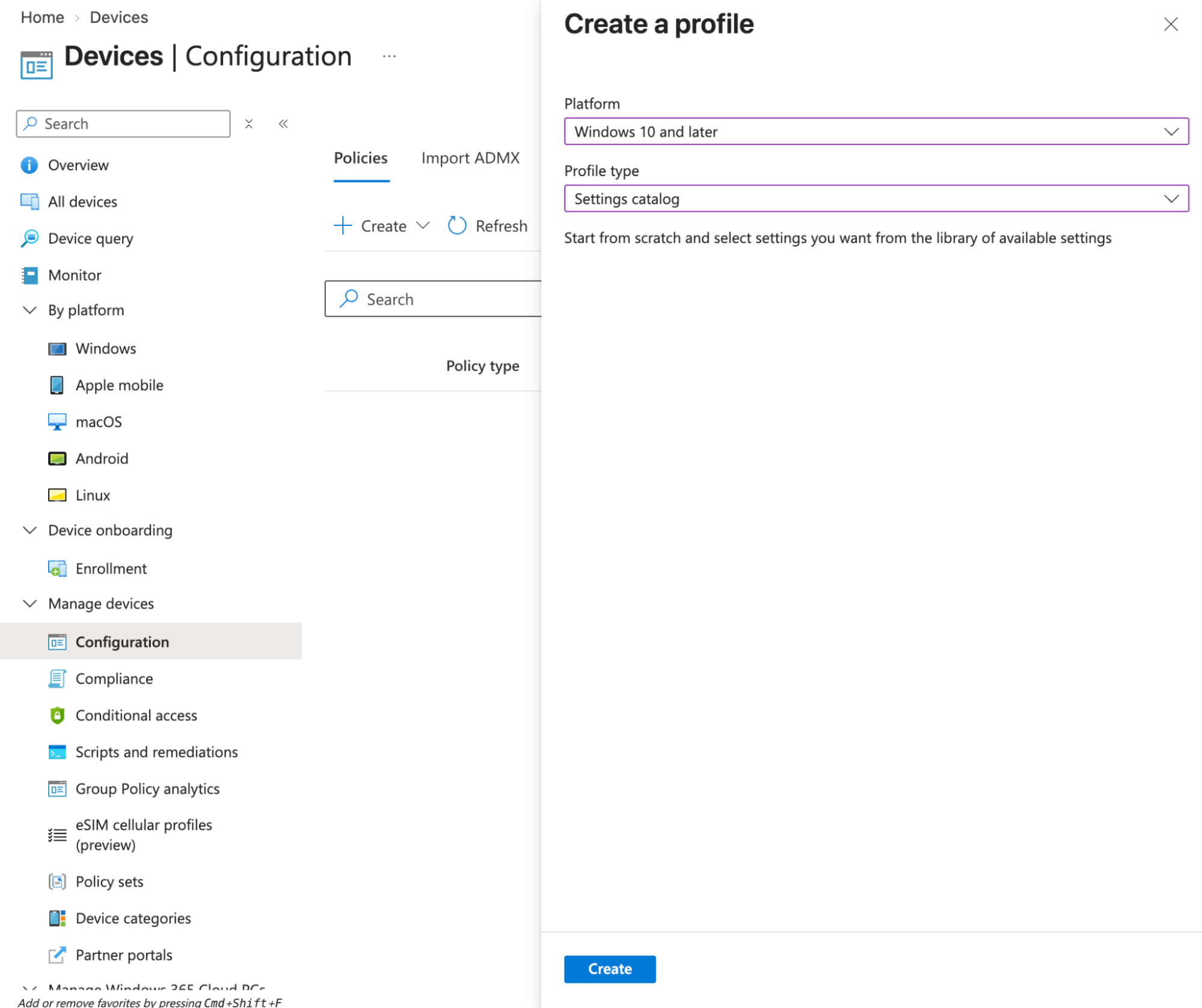
1. In the Microsoft Intune admin center, go to Devices > Manage devices > Configuration. Click Create > New Policy.
2. Set:
Platform: Windows 10 and later
Profile type: Templates
Template name: Setting catalog
Then click Create.
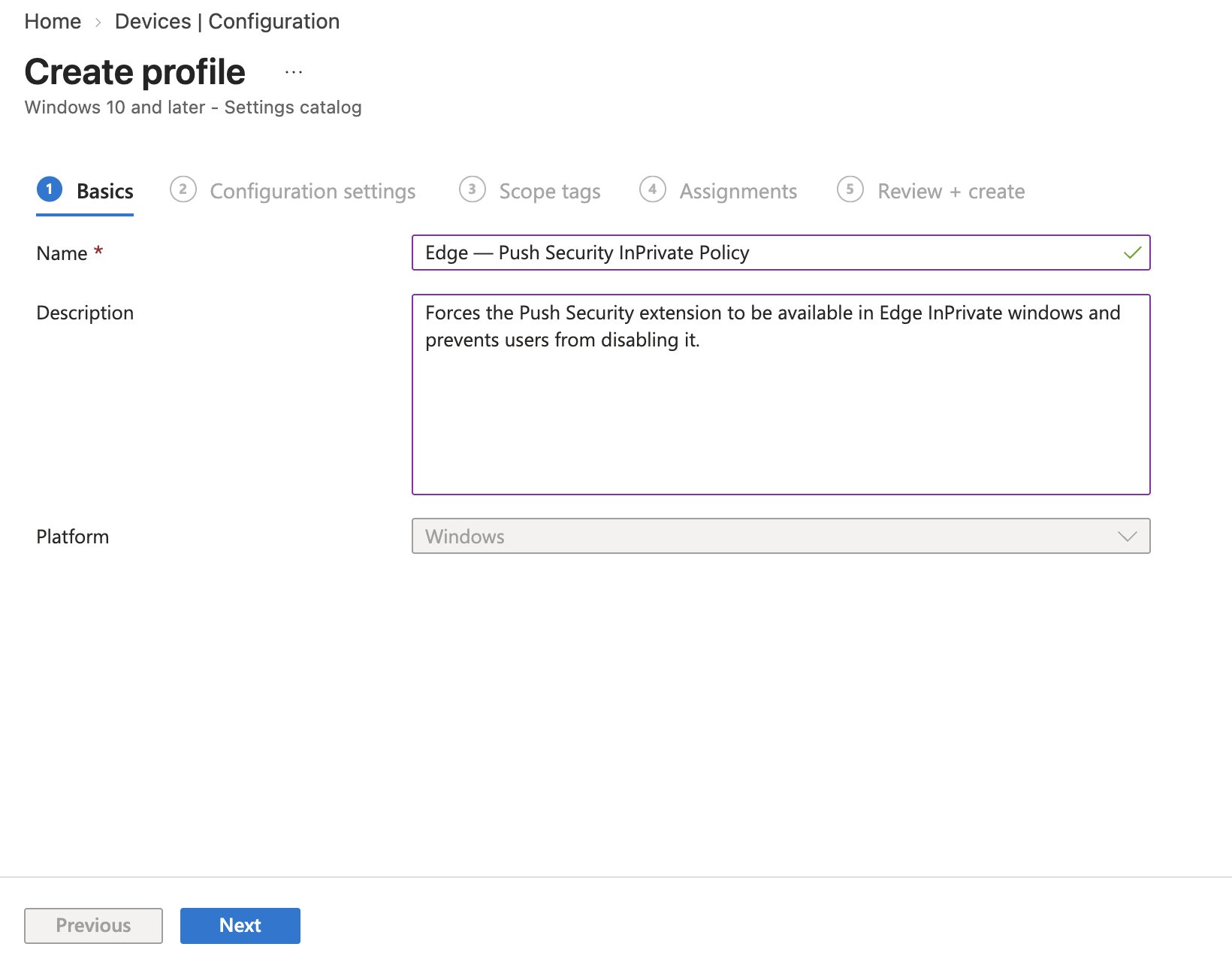
3. On the Basics tab, enter:
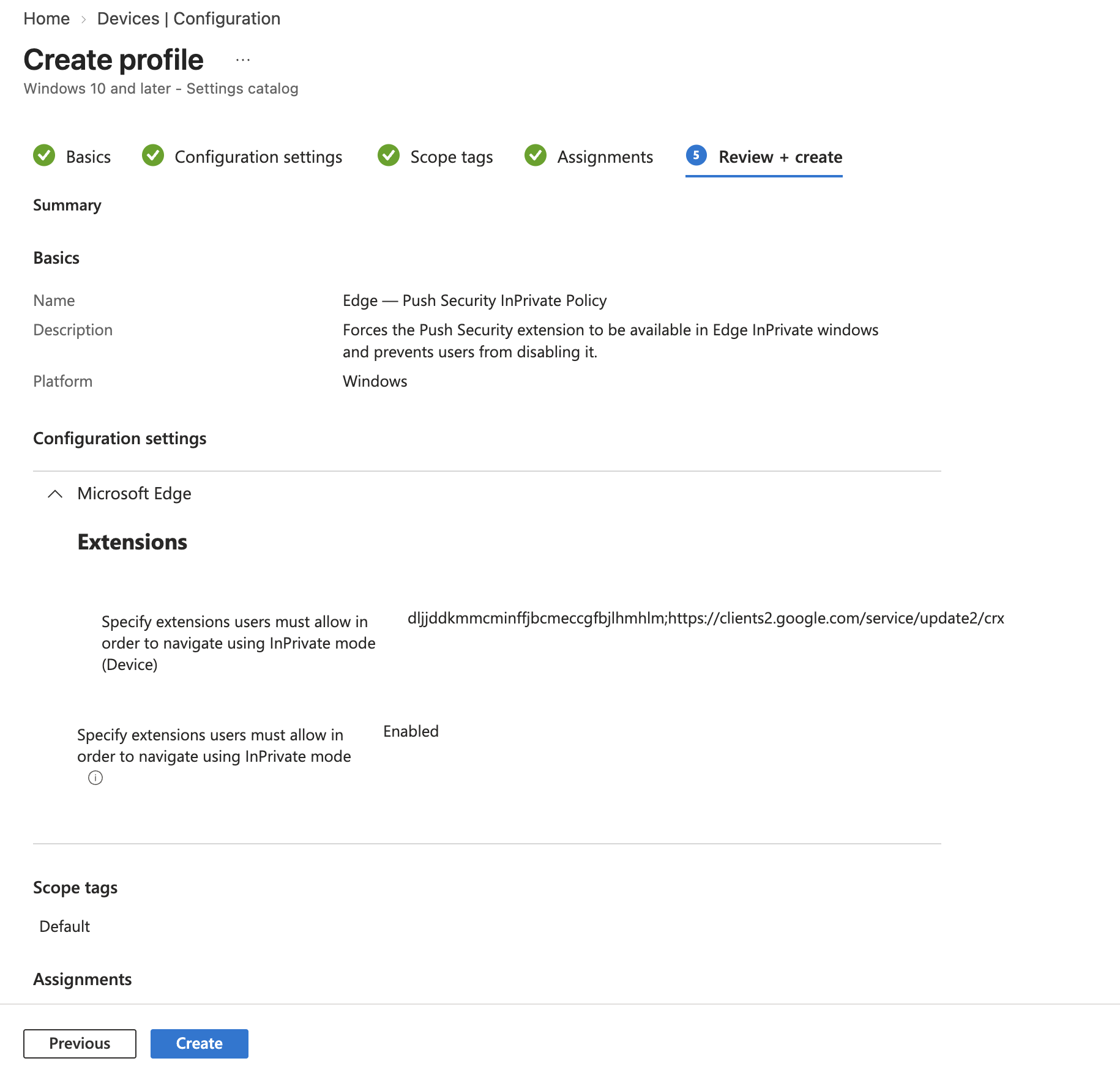
Name: Edge — Push Security InPrivate Policy
Description: Forces the Push Security extension to be available in Edge InPrivate windows and prevents users from disabling it.
Then click Next.
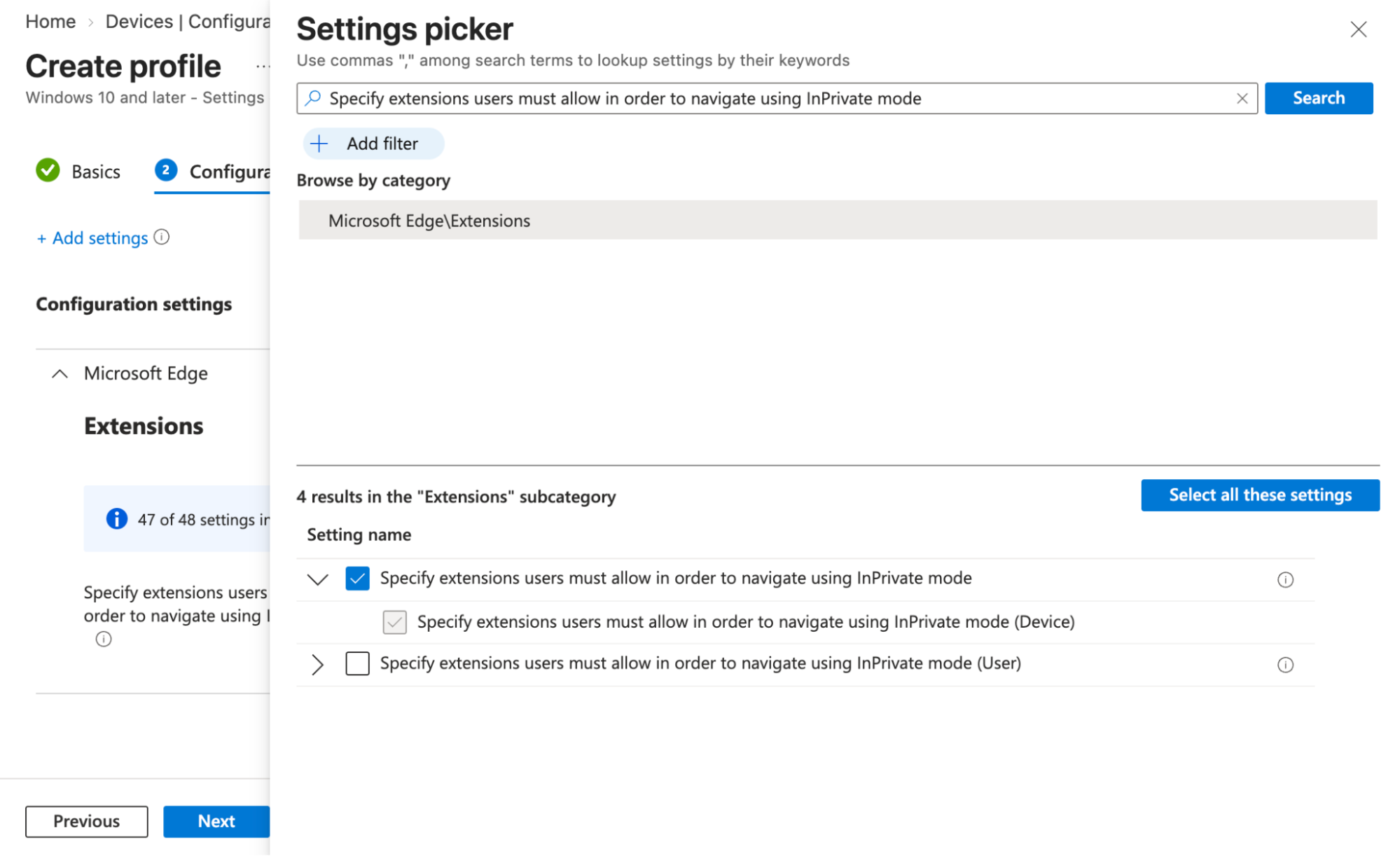
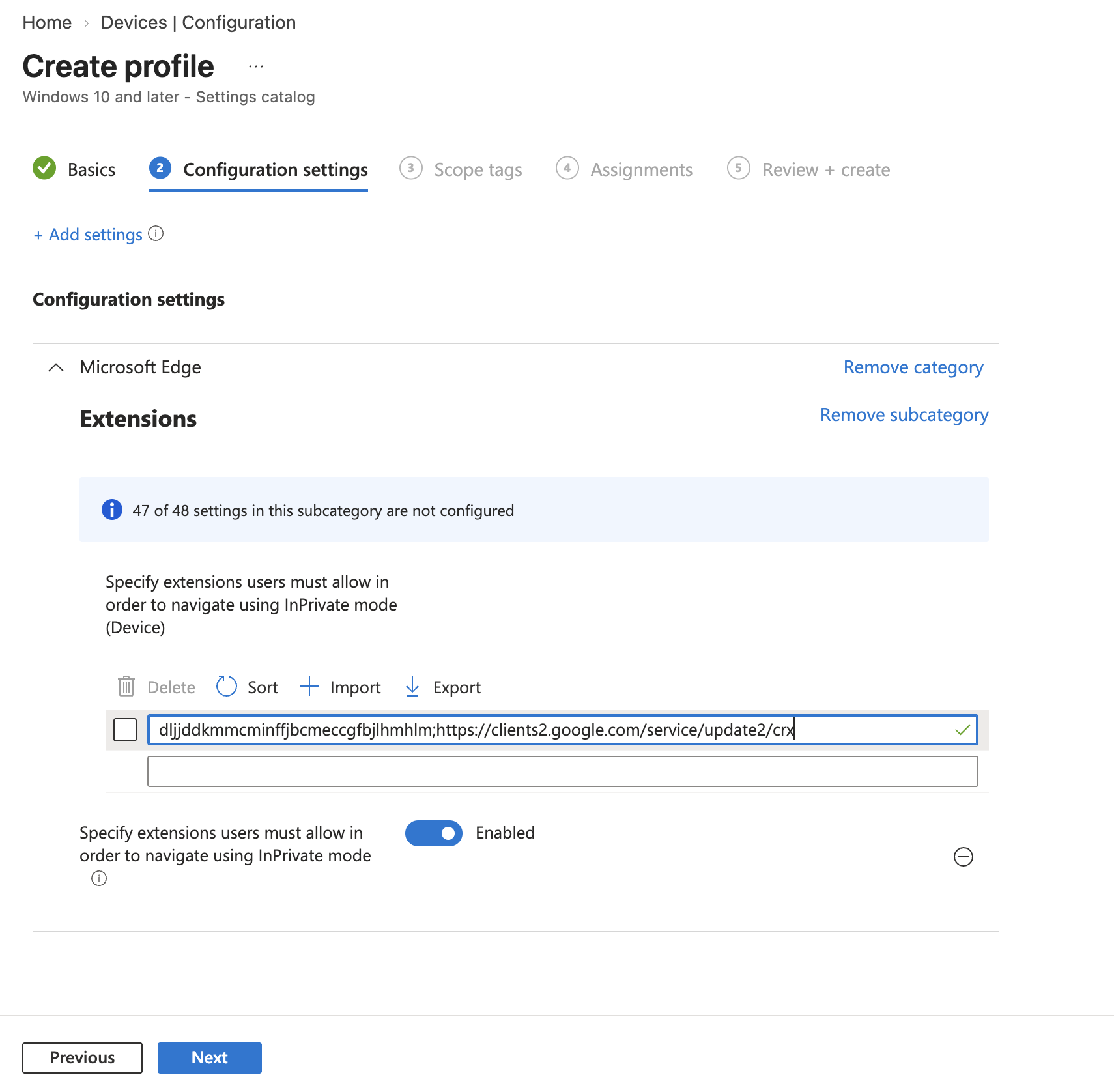
4. On the Configuration settings tab, select Add settings and use the search box at the top to search for: Specify extensions users must allow in order to navigate using InPrivate mode. The setting appears under Microsoft Edge\Extensions. Check the option and close the Settings picker.
5. Set the state to Enabled.
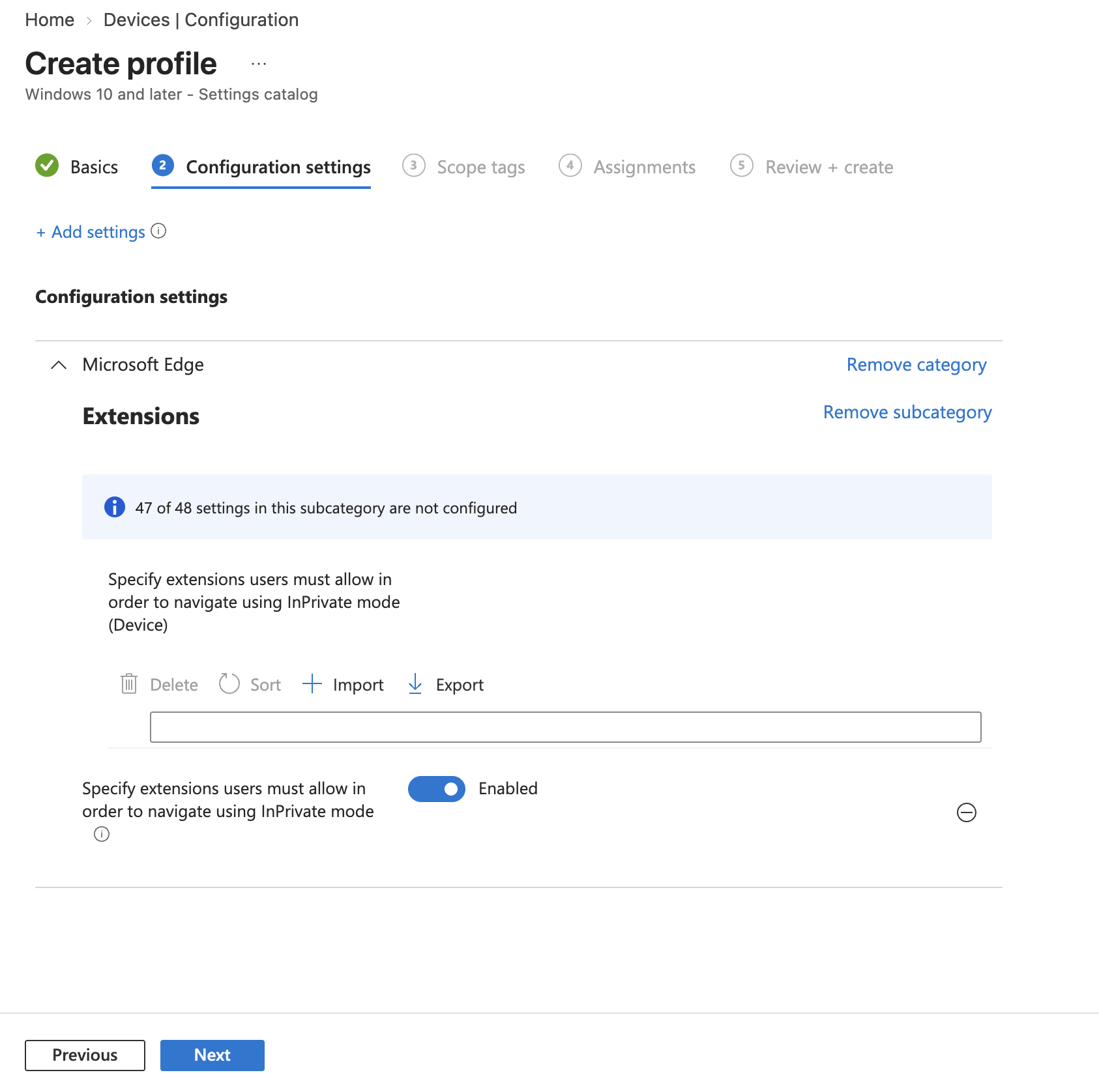
6. Under Specify extensions users must allow in order to navigate using InPrivate mode (Device), add the following value exactly as written:
Shell
dljjddkmmcminffjbcmeccgfbjlhmhlm;https://clients2.google.com/service/update2/crxThe value before the semicolon is the Push Security extension ID. The URL after the semicolon is the Chrome Web Store update URL (Edge uses this same endpoint for Chromium extensions).
Click Next.
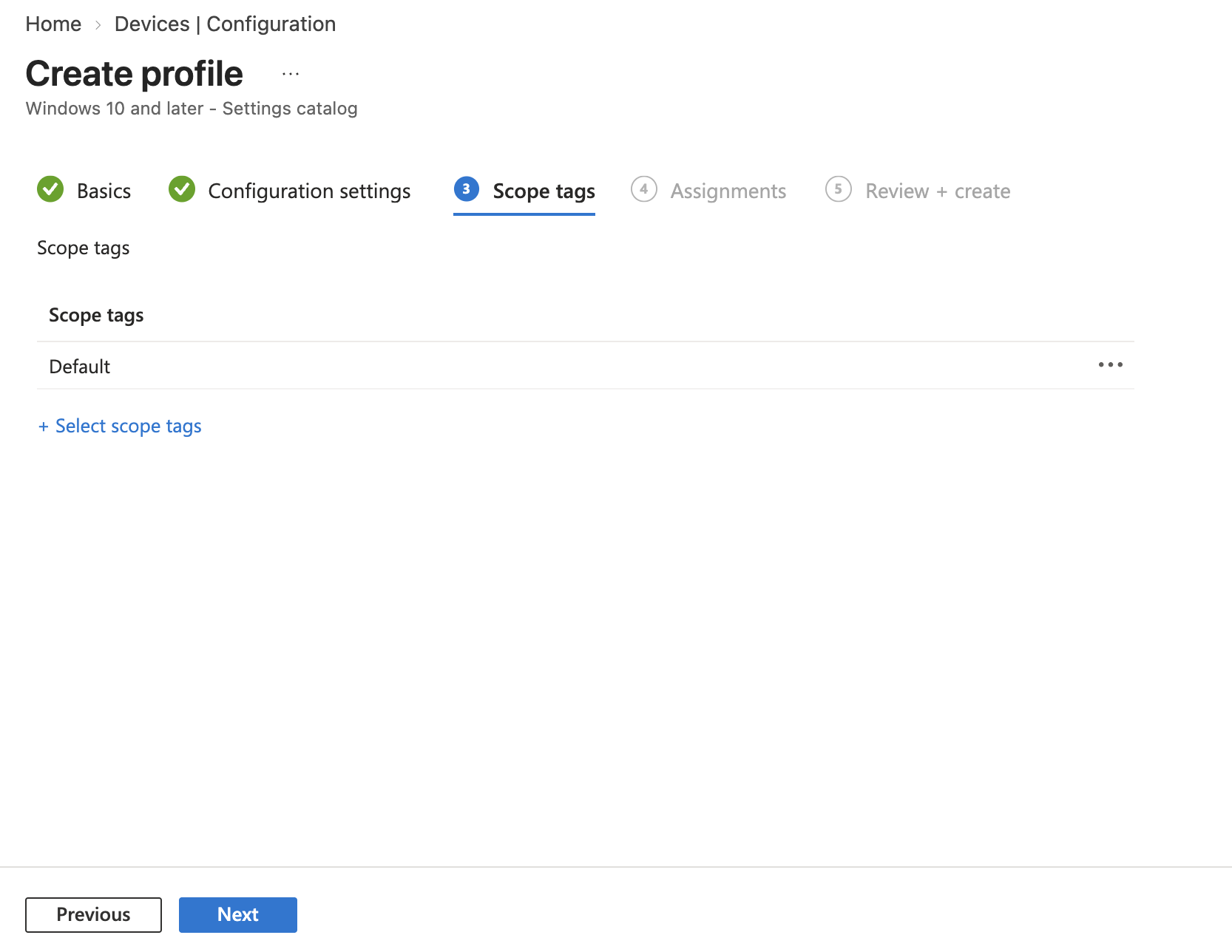
7. On the Scope tags tab, assign any applicable scope tags. Click Next.
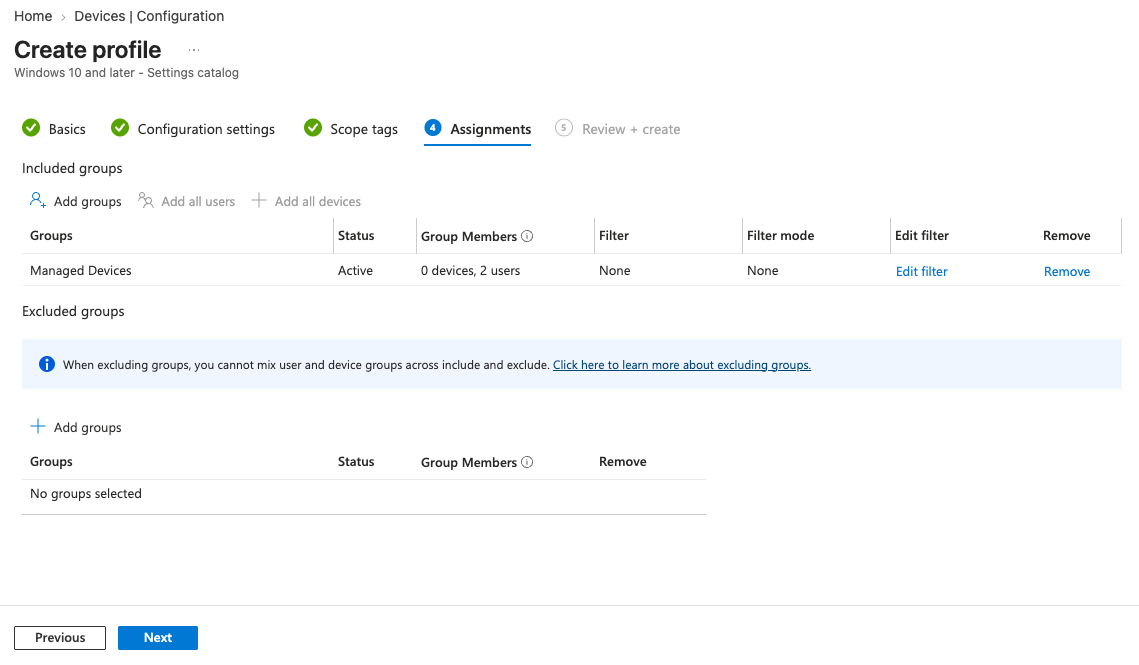
8. On the Assignments tab, assign to a device group containing your Edge users. Click Next.
9. Review and click Create.
Verify the policy
On a target device, after the next Intune policy sync (you can force it via Settings > Accounts > Access work or school > Info > Sync on the device, or wait for the automatic 8-hour sync cycle), open Edge and go to edge://policy/.
Search for MandatoryExtensionsForInPrivateNavigation in the policy list. You should see the extension ID and update URL listed, with status Applied.
When the Push Security extension is disabled for InPrivate mode, the user will be blocked from using InPrivate mode.