
'%3e%3cpath%20d='M248.027%20159.993C292.176%20159.993%20328.105%20124.1%20328.105%2079.996C328.105%2035.892%20292.191%200%20248.027%200C203.863%200%20167.95%2035.892%20167.95%2079.996C167.949%20124.101%20203.878%20159.993%20248.027%20159.993ZM213.969%2045.973C223.069%2036.882%20235.155%2031.873%20248.027%2031.873C260.899%2031.873%20272.986%2036.882%20282.086%2045.973C291.186%2055.064%20296.2%2067.154%20296.2%2079.997C296.2%2092.84%20291.186%20104.93%20282.086%20114.021C272.986%20123.112%20260.899%20128.12%20248.027%20128.12C235.155%20128.12%20223.069%20123.111%20213.969%20114.021C204.869%20104.93%20199.871%2092.84%20199.871%2079.997C199.871%2067.154%20204.884%2055.063%20213.969%2045.973Z'%20fill='%23EE4323'/%3e%3cpath%20d='M150.16%200L57.6821%20159.993H94.5381L187%200H150.16Z'%20fill='%23EE4323'/%3e%3cpath%20d='M92.478%200L0%20159.993H36.856L129.334%200H92.478Z'%20fill='%23EE4323'/%3e%3c/g%3e%3cdefs%3e%3cclipPath%20id='clip0_296_834'%3e%3crect%20width='328.105'%20height='159.993'%20fill='white'/%3e%3c/clipPath%3e%3c/defs%3e%3c/svg%3e)



/
How to enforce the Push extension in Chrome and Edge InPrivate/Incognito mode via Intune detection and remediation scripts
Overview
You can enforce the Push browser extension in InPrivate (Edge) and Incognito (Chrome) mode using a Detection and Remediation script pair, deployed via Microsoft Intune. The scripts check the browser's preferences on each managed device and set the extension as allowed in private browsing where it isn't already giving you coverage on both Chrome and Edge, and on Edge versions that don't support the native InPrivate policy (Edge 116 or earlier).
If you're only deploying to Edge and are on Edge 117+, we recommend using the native Intune policy as your primary enforcement mechanism instead, since it's the cleanest approach and locks the user-facing toggle directly. See How to enforce the Push extension in Edge InPrivate mode via Intune policy for details. The scripts and the policy coexist without conflict, so Edge customers can run the policy alone, the scripts alone, or both as a safety net.
Before you start: The Push Security extension must already be force-installed via Intune or Group Policy (ExtensionInstallForcelist for Chrome and Edge). This article only covers enforcing its use in private browsing — it does not install the extension.
Caveats and limitations
The Push Security extension must be installed first. The scripts and policy do not install the extension. Before deploying this enforcement, deploy the Push Security extension to Edge via the ExtensionInstallForcelist policy in Intune or Group Policy.
Chrome/Edge must be closed when the Remediation script runs. If Chrome or Edge is actively running, the script detects this and defers the patch to the next scheduled cycle.
Supported platforms: Windows 10 and Windows 11. Chrome/Edge must be installed in either Program Files or Program Files (x86).
Deploying via Intune Detection and Remediation Scripts
Prerequisites
Devices enrolled in Intune and Entra-joined or hybrid-joined.
Microsoft Edge and/or Google Chrome installed on target devices.
Push Security extension force-installed via Intune:
Edge: ExtensionInstallForcelist under Microsoft Edge\Extensions.
Chrome: ExtensionInstallForcelist under Google Chrome\Extensions (requires the Chrome ADMX administrative templates to be added to your Intune tenant, since Chrome policies aren't part of Microsoft's built-in catalog).
An Intune role with permission to create Remediation script packages (Intune Administrator or Endpoint Security Manager).
Deployment steps
1. Download the detection and remediation scripts. In the Push admin console, go to Inventory > Browsers > Manage. Select Device Management Software, then choose the OS of Windows and the browser type of Edge. Enable Include Incognito mode enforcement script and then click Generate config.
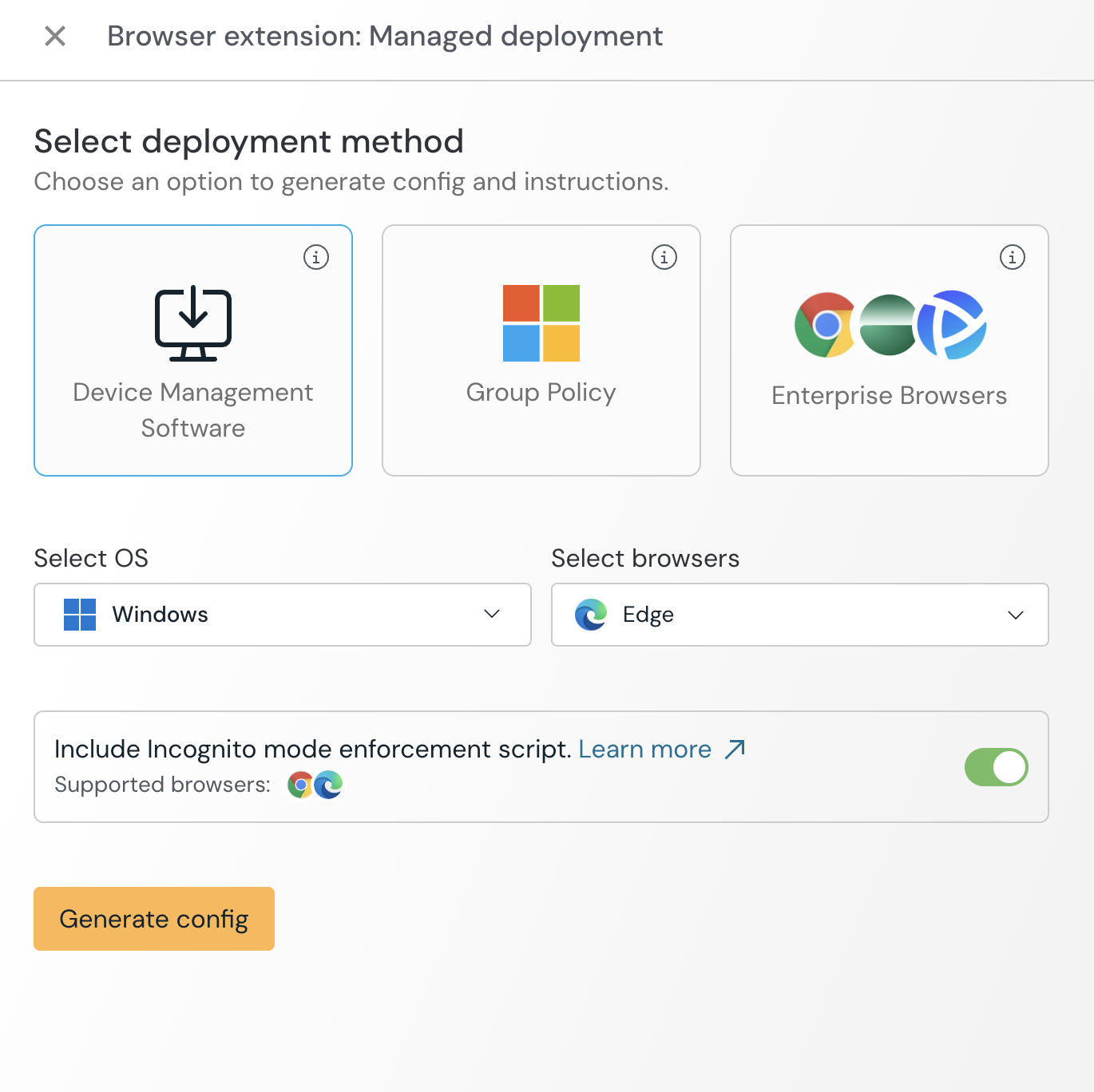
2. Extract the zip file. The required detection and remediation PowerShell scripts are inside the incognito folder.
3. In the Microsoft Intune admin center, go to Devices > Manage devices > Scripts and remediations > Remediations. Click Create > Script package.
4. On the Basics tab, enter:
Name: Push Security - Edge InPrivate Enforcement (or Push Security - Chrome Incognito Enforcement for the Chrome package)
Description: Ensures the Push Security extension is allowed to run in Edge InPrivate (or Chrome incognito) windows.
Publisher: Your organization name.
Click Next.
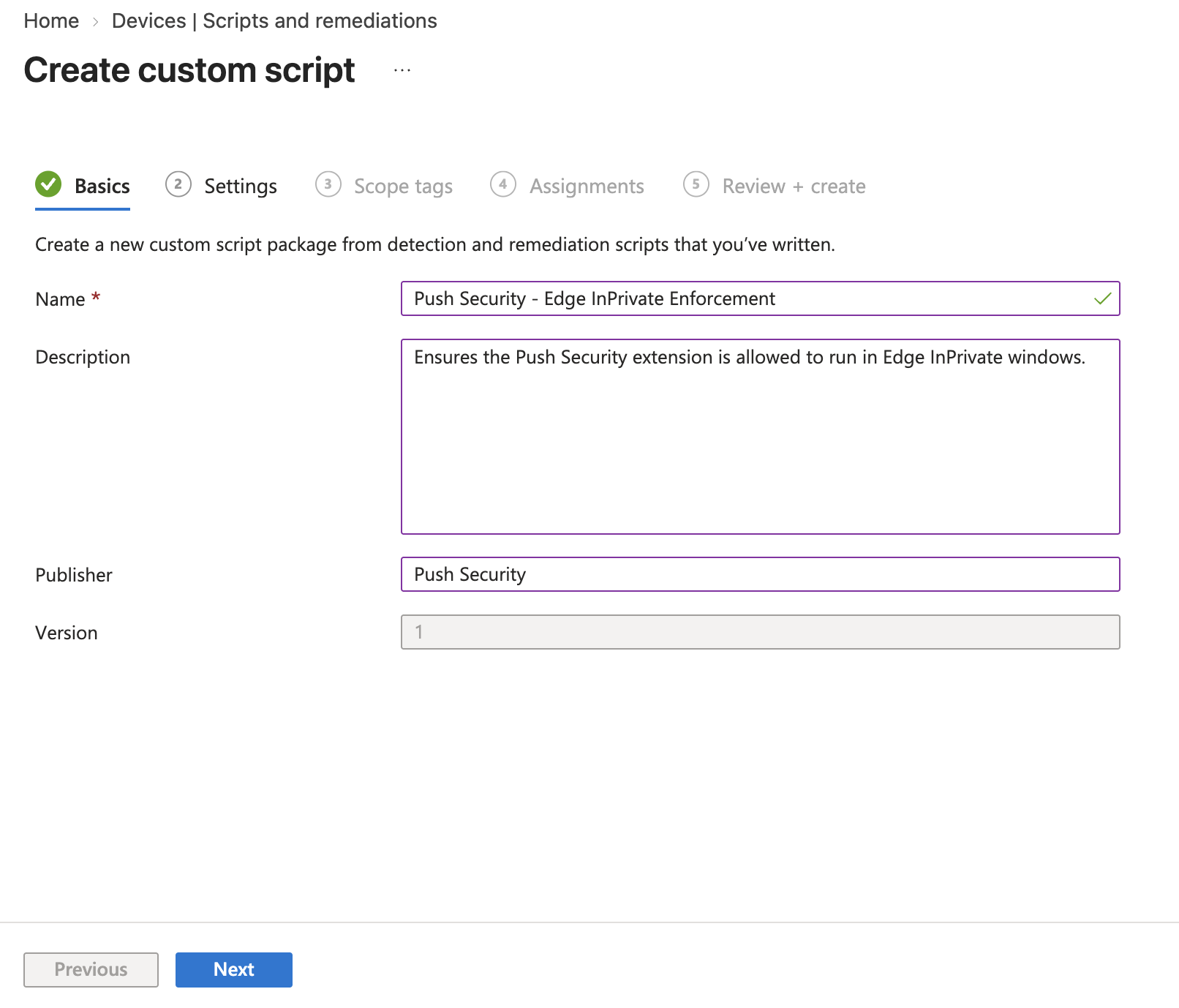
5. On the Settings tab, upload:
Relevant Chrome or Edge package: {browser}_detect_incognito.ps1 / {browser}_remediate_incognito.ps1
Run this script using the logged-on credentials: Yes (the scripts must run as the logged in user).
Enforce script signature check: No.
Run script in 64-bit PowerShell: Yes.
Click Next.
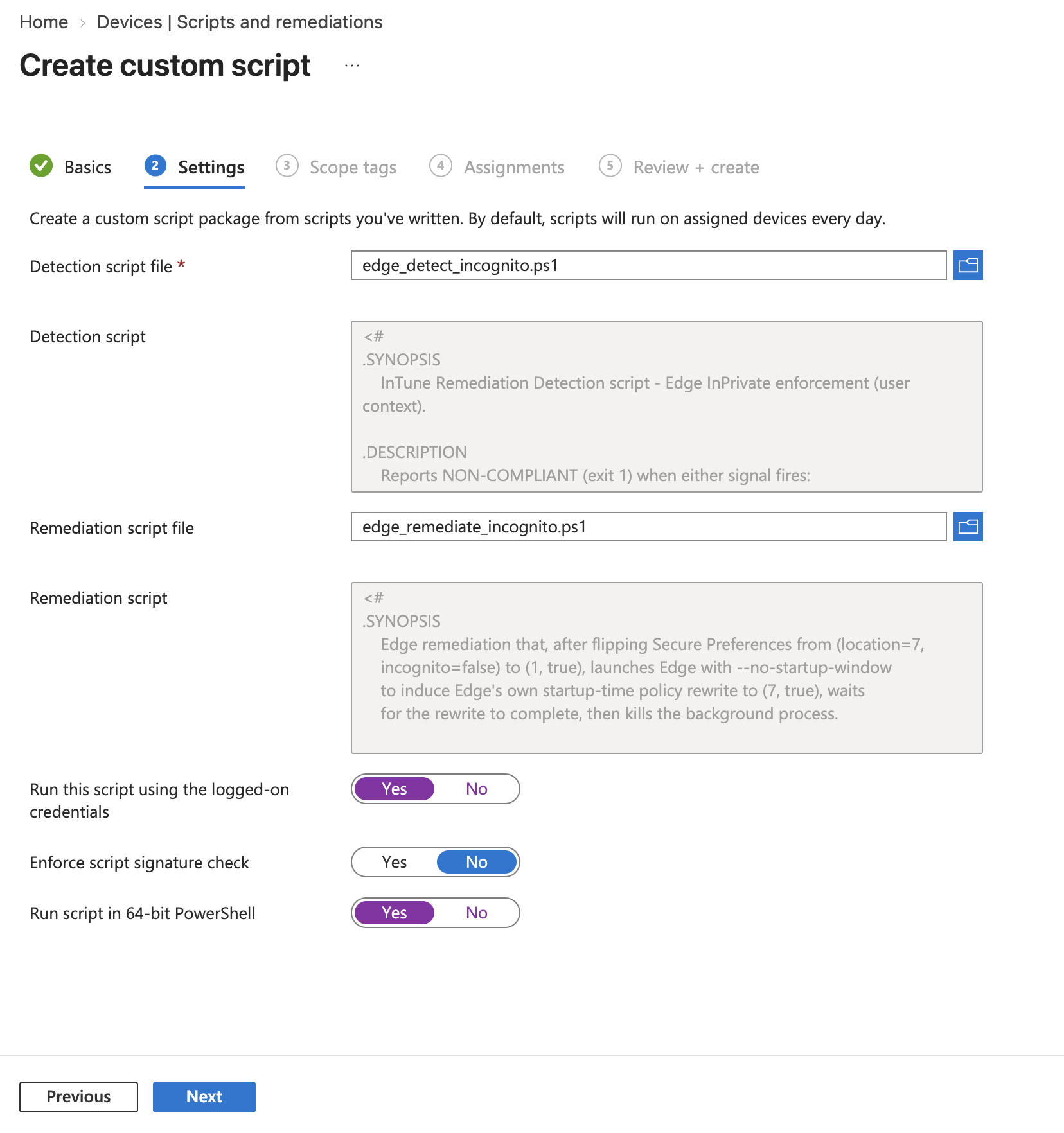
6. On the Scope tags tab, assign any applicable scope tags. Click Next.
7. On the Assignments tab, assign the package to a device group containing your Edge users. Do not assign to a user group - this should be a device assignment so the remediation applies to the device regardless of which user is logged in.
Next, select the group(s) and edit the schedule:
Frequency: Hourly
Number of hours: 1
Click Apply.
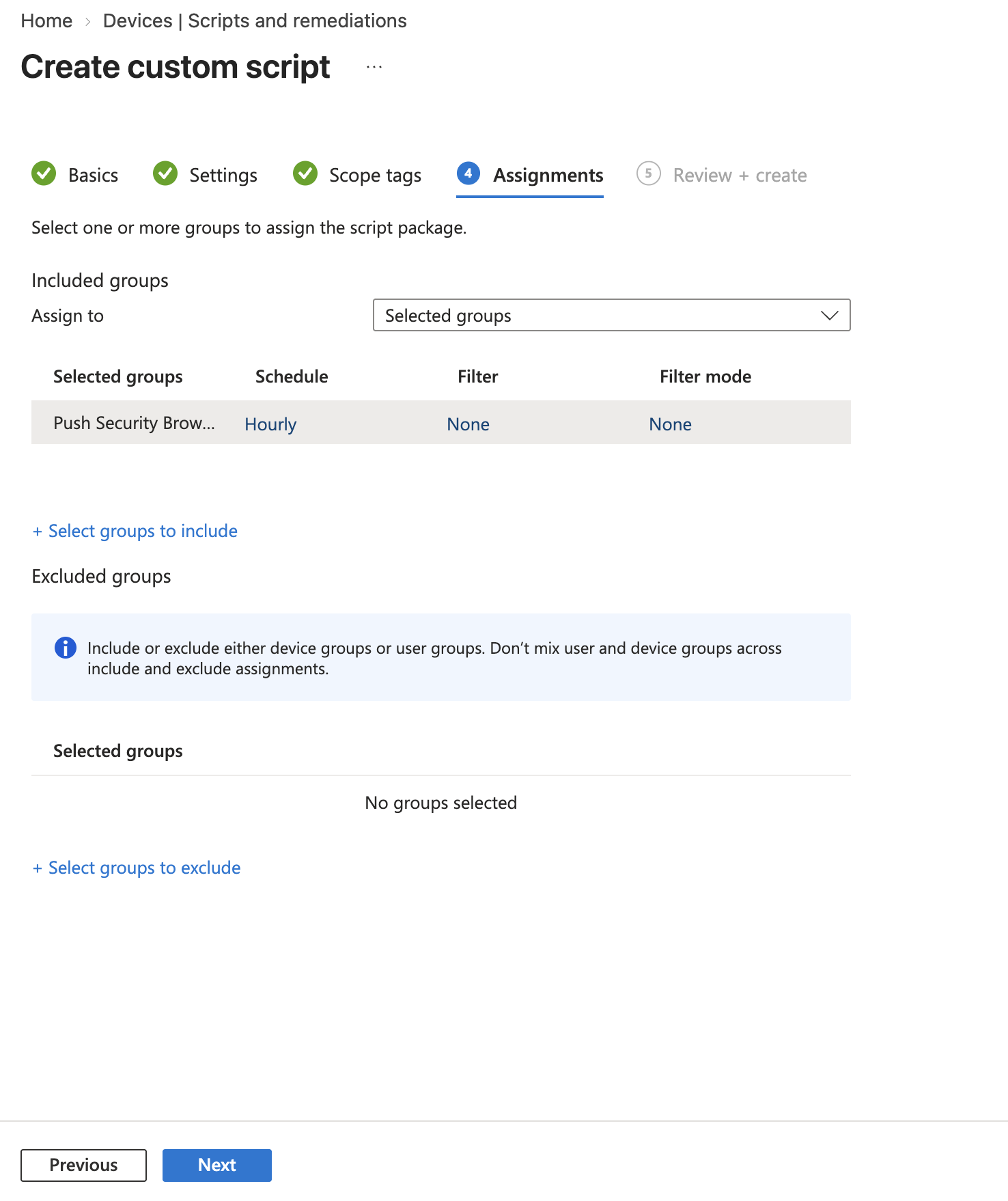
Click Next and review. Then click Create.
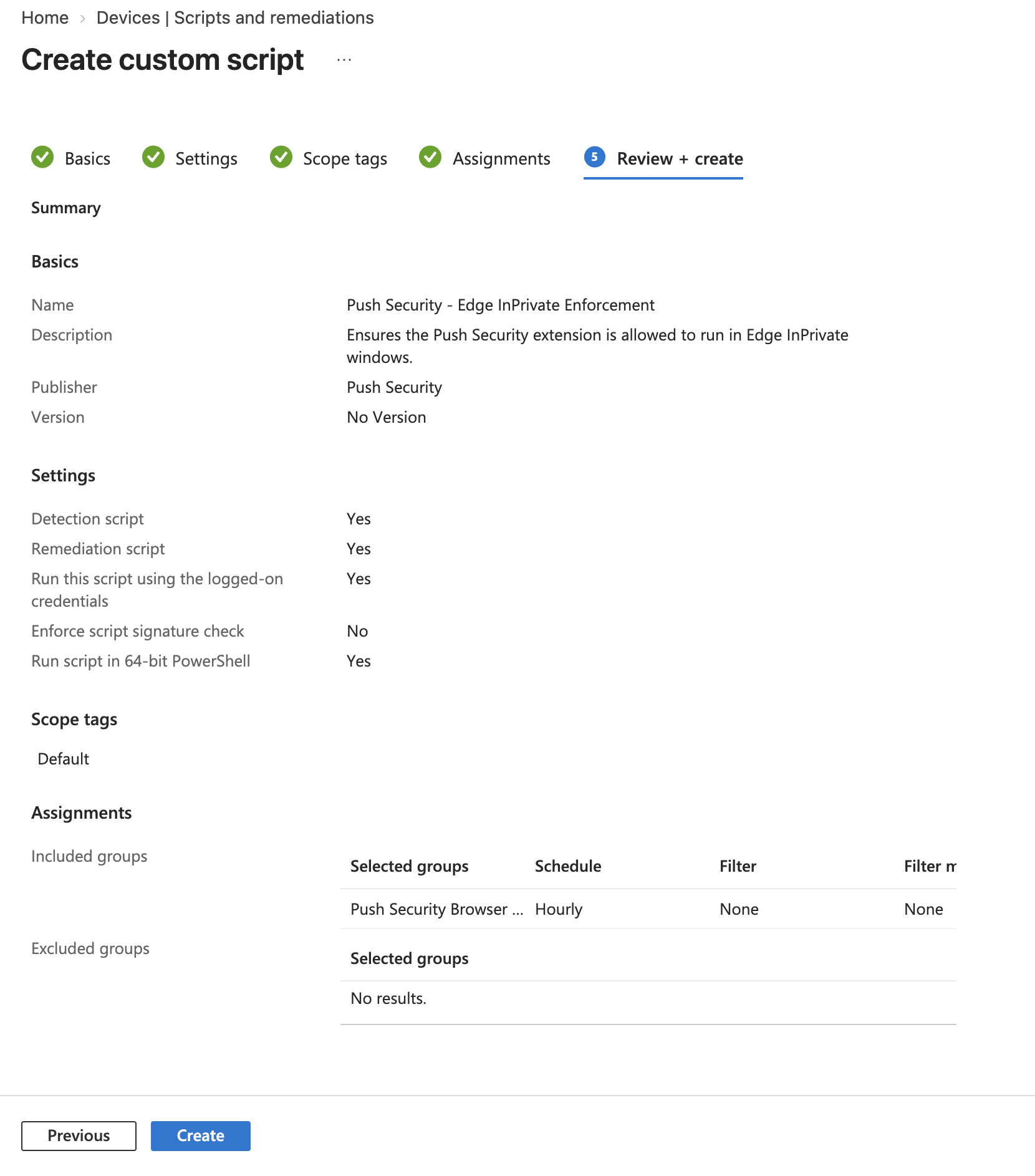
Verifying the deployment
After the first scheduled run on a device, return to the Remediation package in Intune and open Device status. You will see each targeted device listed with a status of Without issues, Issues found, or Resolved.
On a device you expect to be non-compliant, the first Detection run will show Issues found, and the next Remediation run will transition it to Resolved.
To verify directly in the browser:
Edge: Open edge://extensions/, click Details under Push Security, and confirm Allow in InPrivate is set to On. Open an InPrivate window and confirm the Push Security icon is present in the toolbar.
Chrome: Open chrome://extensions/, click Details under Push Security, and confirm Allow in Incognito is On. Open an Incognito window and confirm the Push Security icon appears in the toolbar.
Support
If devices show repeated Failed status in the Device status view, capture the Detection and Remediation output from the Intune portal (click on the device row to view the output) and share it with your Push Security contact.
The on-device Intune log at C:\ProgramData\Microsoft\IntuneManagementExtension\Logs\AgentExecutor.log contains the full run detail.