If you want to protect employees working in the browser, you need to get as close to the user as possible. In this Push product guide, we’ll cover how to use in-browser controls to stop attacks before compromise can occur, and to guide users to remediate vulnerabilities — all using your custom branding to increase trust.
Protecting employees as they work online is harder than ever. A poisoned search result, a link in a LinkedIn message, or a fake CAPTCHA page can fast become the next patient zero in a breach. Attackers rotate domains, deliver lures through trusted platforms, and reach users across every channel they work in. You can't train or blocklist your way out of that.
If you want to protect employees working in the browser, you need to get as close to them as possible. In this Push product guide, we’ll cover how to use in-browser controls to stop attacks before compromise can occur, and to guide users to remediate vulnerabilities — all using your custom branding to increase trust.
A lot has changed since we first published this blog in April! We've now updated and republished it with our latest capabilities.
Attacks come in through the browser, and data goes out through it
Your employees do most of their work in the browser, and that's where attackers target them. Attacks come in through the browser as AiTM phishing pages, device code prompts, fake CAPTCHAs, and malicious extensions. Company data goes out through it too, into AI tools and personal accounts. Along the way, users take risks that set up account takeover, like reusing a password, skipping MFA, or signing in to a work app with a personal account.
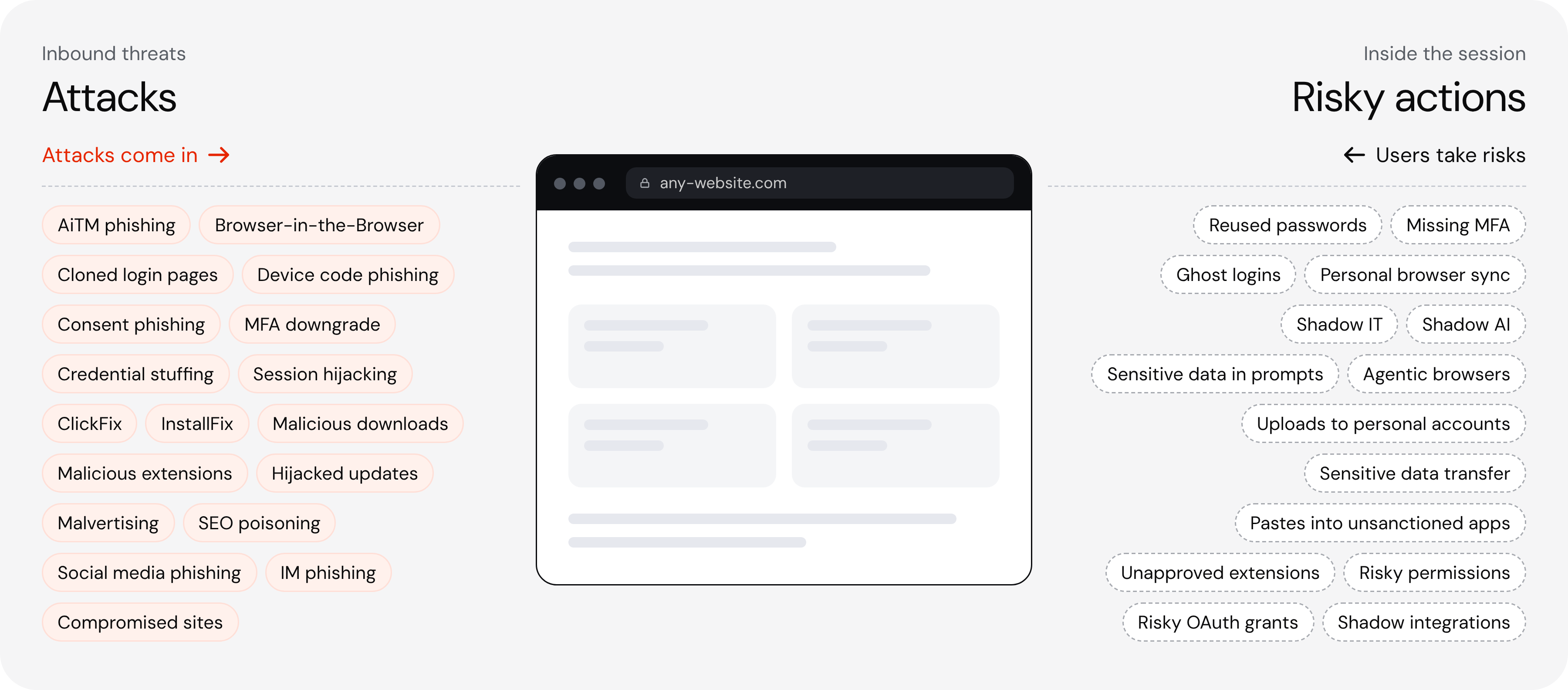
But most of the security stack sits on either side of the browser. Email security and network proxies check what's on its way to the user. EDR, your identity provider, and cloud and SaaS logs see what happens after a login or a download. The browser session, where all of this happens, is the missing middle.
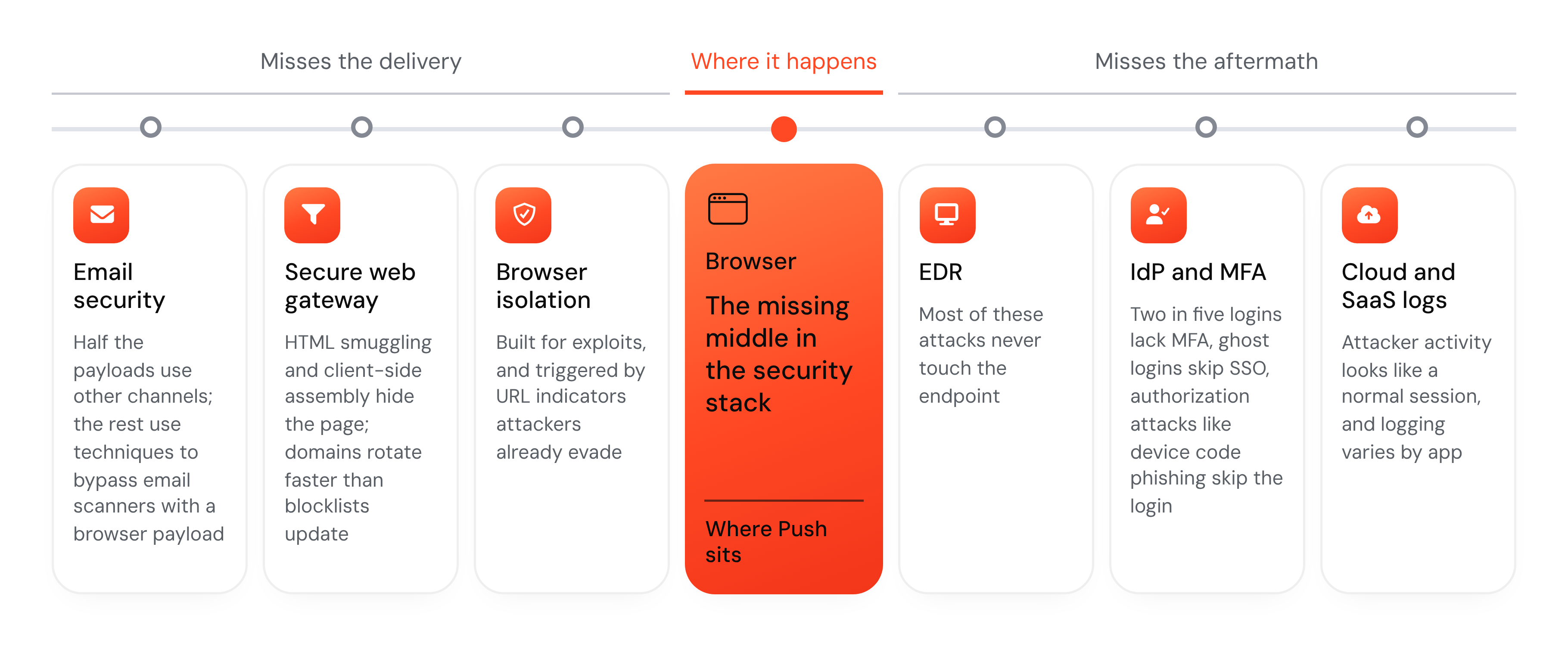
Tools at the other layers see these events late or not at all. A proxy sees a URL, but not the page structure and script behavior that give away an AiTM phishing kit. EDR sees a ClickFix payload only once it reaches the endpoint. Your IdP never sees a login to an app that isn't federated to it.
To stop the attack and the risky action as they happen, the control has to sit where the user acts: In the browser. Push controls do two jobs there. They detect and block attacks on the page, and deliver point-in-time guidance and guardrails to stop risky actions in their tracks. As some of our customers like to say, Push gives security teams a “seat on the user’s side” of the equation.
How Push protects users where they work
The Push platform provides out-of-the-box detections and controls for browser-based attacks, including:
Behavioral phishing detection, which blocks phishing pages that steal credentials or sessions, including AiTM phishing kits, device code lures, and pages that haven't been seen before
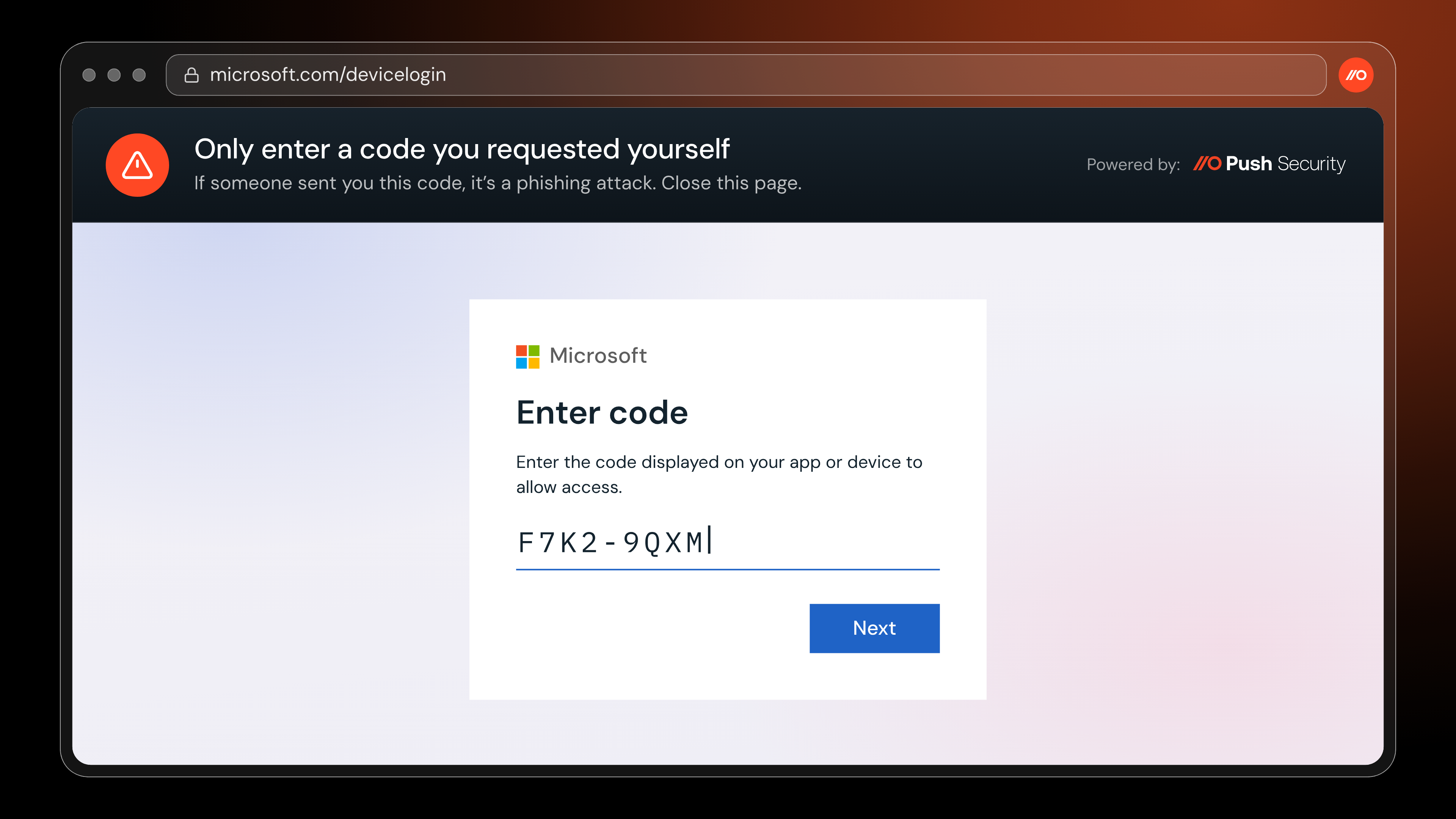
App banners on device code sign-in pages, as a second layer against device code phishing
Malicious copy and paste detection for ClickFix, FileFix, InstallFix, ConsentFix, and any other attack that loads a malicious payload onto the clipboard
Malicious browser extension detection
Session token theft detection
Custom detections that you write for threats specific to your environment
For each of these attack vectors, Push delivers detection events and associated metadata for quick triage by the security team, as well as employee-facing warn or block screens, based on your selected configuration.
Here’s a snapshot of the capabilities of these controls and what end-users will experience.
The scenario:
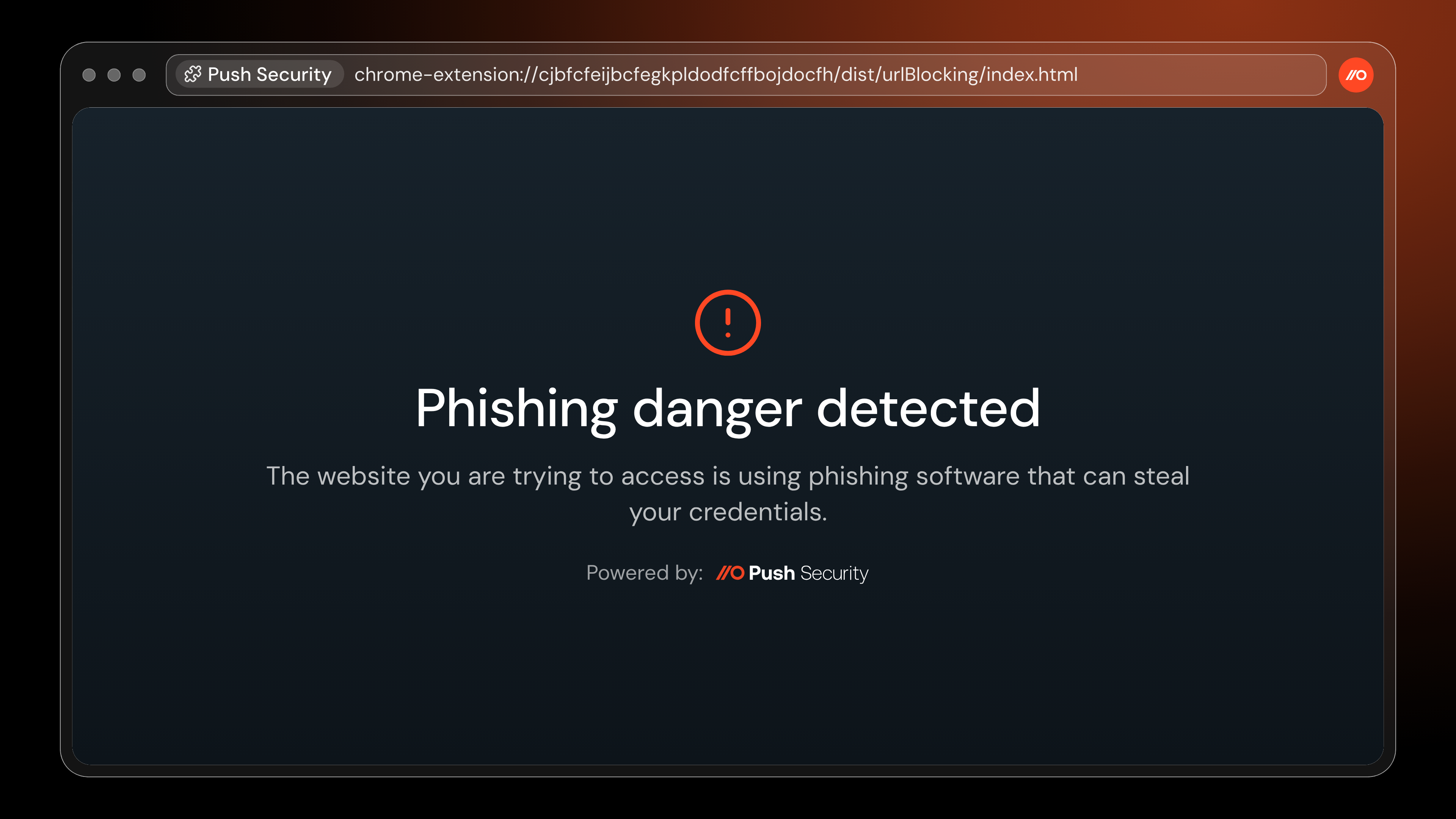
When a user lands on a phishing page, Push steps in before they enter their credentials. That's true whether the page runs an AiTM phishing kit, clones a login page, or asks the user to enter a device code. Push also steps in when a page loads a malicious command onto the clipboard, or when a user tries to install a known-bad extension.
In each of these scenarios, Push admins get detailed detection information they can use to triage the incident.
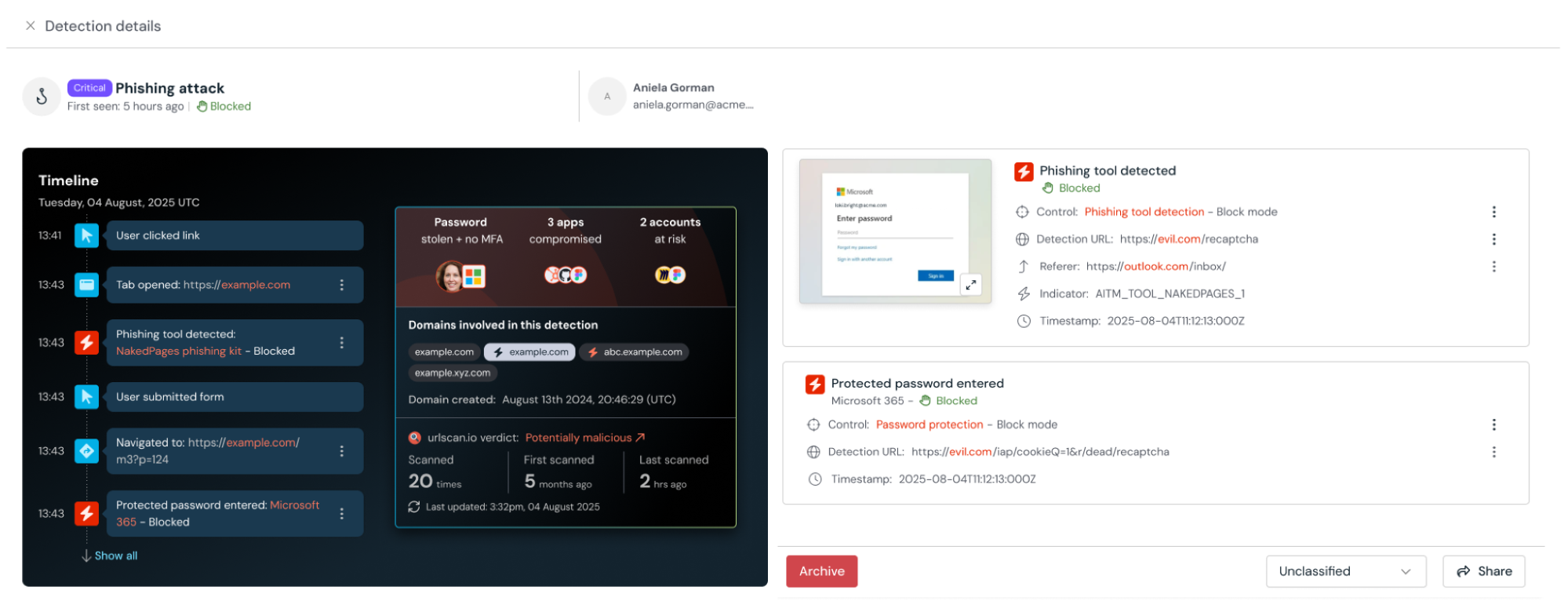
How it works:
Rather than relying on known-bad intelligence like domains or URLs, Push detects and blocks phishing on the rendered page in real time. Push's real-time detection engine analyzes the page in the browser, including its structure, script behavior, and how it handles credentials.
Behind the engine, Push's agentic threat hunting pipeline analyzes browser activity for attacker behavior, builds new detections, and ships them to the engine within minutes. Push refines each detection to be as generic and resilient as possible, so one detection can cover a technique across many kits. That means a phishing page never has to appear in a threat intelligence feed in order to be detected and blocked.
Device code phishing gets a second layer, because the attacker doesn't always need a phishing page. They can send the code in a Teams message or read it out on a phone call, and the user then enters it on a genuine Microsoft or Google sign-in page.
To counter this, you can ddd an app banner to your identity provider's device code URLs in Acknowledge mode. The user has to confirm that they started the sign-in, and a click-through generates an alert for your team. Or, if you don't need device code logins for normal business use, block the page entirely. Our device code phishing research explains why these attacks get past MFA and passkeys.
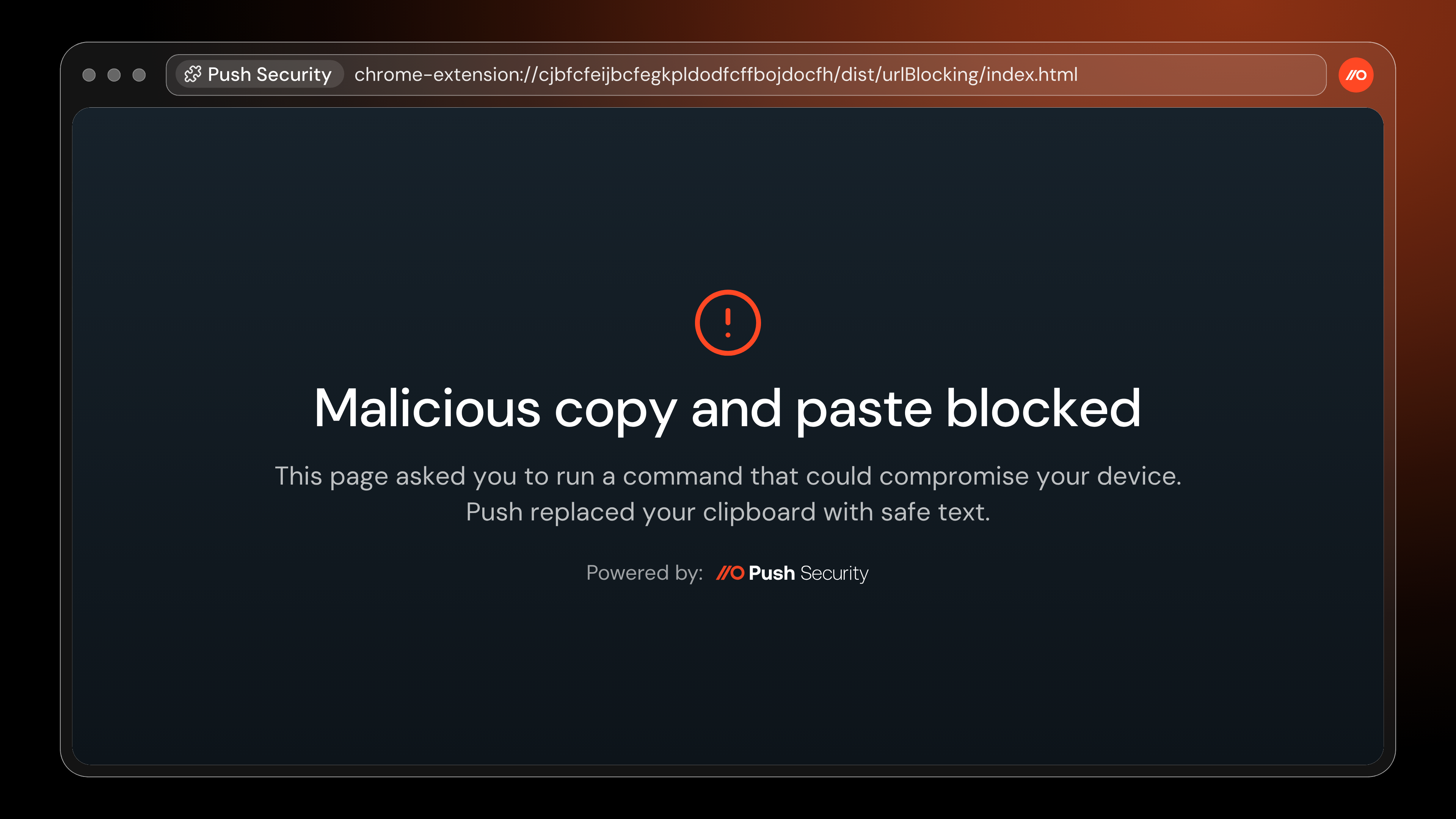
For malicious copy and paste attacks like ClickFix, Push analyzes the content copied to the clipboard but also evaluates the context of the page to reduce false positives. The detection targets the technique, so it covers FileFix, InstallFix, and new variants without a separate rule for each. In Warn and Block modes, Push replaces the malicious clipboard contents with safe text — preventing potential endpoint compromise before it can occur.
For malicious browser extensions, Push takes a slightly different approach. It matches installed extensions against a continuously updated list of malicious extension IDs, drawn from our own research and from public threat intelligence. In Block mode, Push disables a known-bad extension and shows a block page if a user tries to install it from an extension store. To go further, use the Browser extension blocking control to build an allowlist, or to disable extensions that request risky permissions. Our extension management guide walks through that process.
For stolen sessions, Push injects a unique marker into the user agent string of sessions on the domains you choose, such as your identity provider. If activity in the same session appears in your IdP or app logs without the marker, someone is using that session from a browser without Push. Treat that as a high-fidelity signal of session token theft.
Finally, custom detections let your team cover threats specific to your environment without waiting for Push to ship a detection. You write rules in YAML that target elements of the page DOM or HTTP requests and responses. Each rule has its own mode, severity, scope, and warn or block text. Teams use them to act on an IOC from a campaign aimed at them, to block a known OAuth grant, or to block MCP connections that pass through the browser.
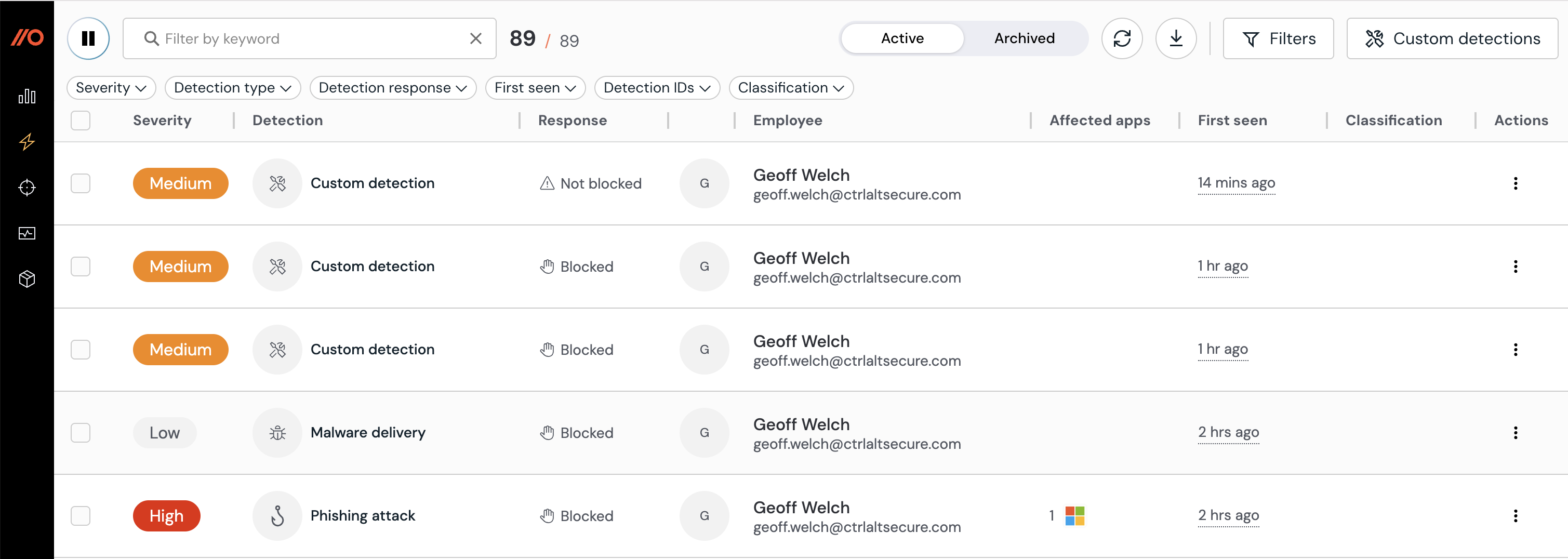
Your security team gets:
Readymade detection and alerting, combined with detailed telemetry. Each detection carries a severity, a timeline of events, and an optional screenshot. Detections and their metadata are available through Push’s REST API and webhooks, so they reach any SIEM or SOAR. Alerts can also go to Slack or Microsoft Teams.
Your end-users see:
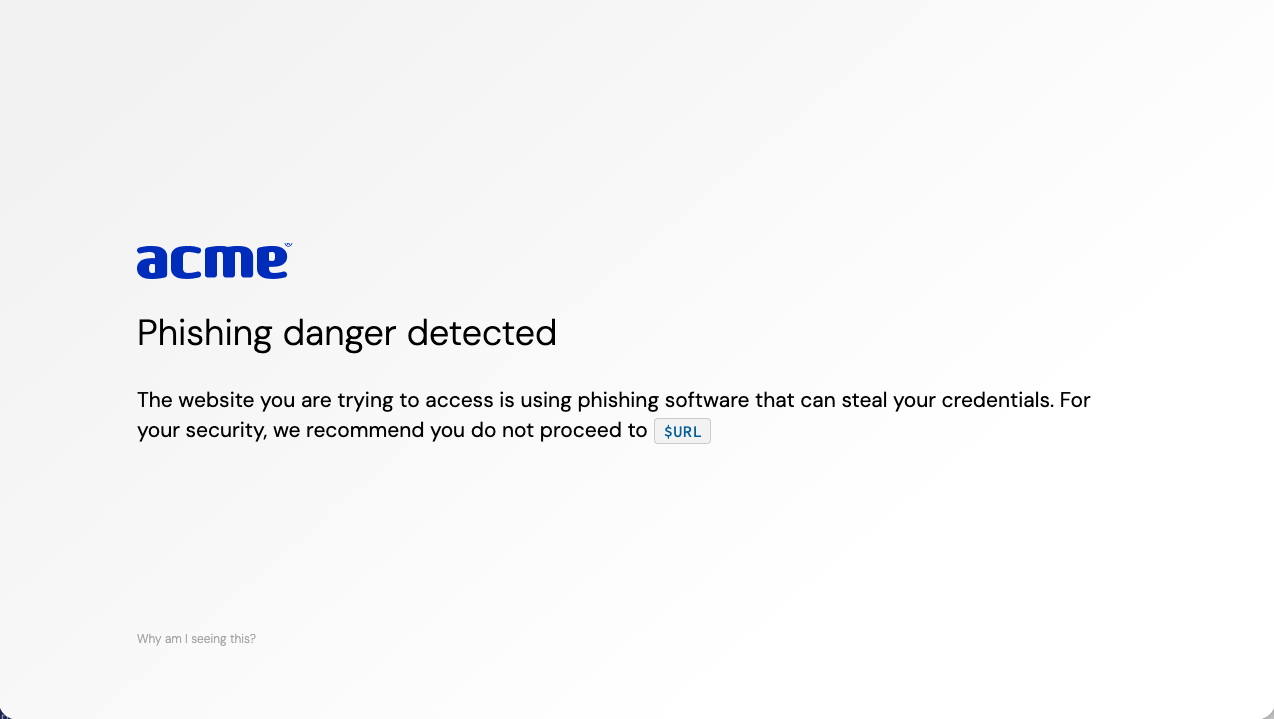
An immediate block screen in your company colors and brand style, providing a highly memorable, contextual moment of learning — and reassuring them that an incident has been prevented.
How Push guides users to reduce your attack surface
Just-in-time security enforcement works best when it’s trustworthy and contextual — without making a lot more work for your team. Push also provides readymade controls for remediating common account vulnerabilities that contribute to your attack surface online, helping you harden existing accounts and reduce behaviors that introduce new risks.
With Push, you can:
Prevent the phishing or reuse of high-value passwords, like your IdP, AWS, or code repository passwords.
Find stolen credentials that employees still use, by checking credentials from threat intelligence feeds against the passwords in use in your environment.
Remediate missing MFA or insecure passwords on any work app, even those not managed by your SSO solution.
Stop employees from typing a password into a non-password field, so it doesn't land in plain text in application logs.
Enforce account conditions for approved apps: Block personal-account logins, require a login method such as SAML, and restrict which browsers can be used.
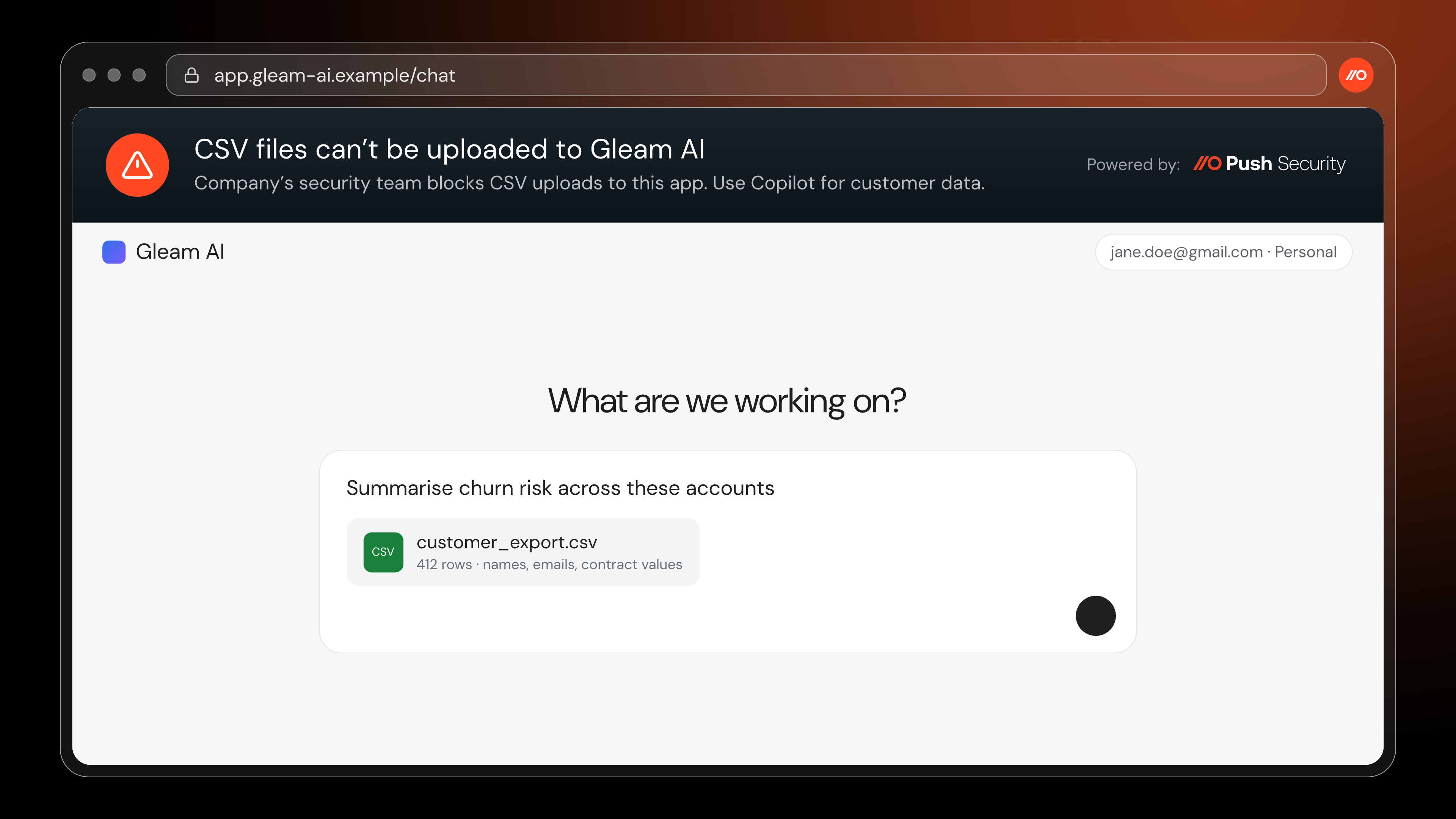
Use in-browser banners to add guardrails to app usage, including blocking unapproved SaaS by app or by category, or collecting a business reason to access an app before approving it.
Block whole categories of domains, including newly registered domains, with the Domain category blocking add-on.
Block unwanted or unapproved browser extensions from being installed, or disable them if they’ve been installed previously.
Here’s a snapshot of the capabilities of these controls and what end-users will experience.
The scenario:
Push uses in-browser controls to intervene when a user is missing MFA; reusing a high-value password; using an insecure or stolen password; signing in to an approved app with a personal account; attempting to log in to an unapproved app; or attempting to install a blocked extension.
Push can block users from reusing passwords set as “protected” (meaning they can’t be reused on any other page or app) or from using unapproved apps or extensions. Push can guide users to update their password or register for MFA on accounts where they lack it. Push can also provide any other specific security or policy guidance to employees via banners that appear on apps in your environment, including GenAI apps.
For all of these scenarios, you can tune Push controls to your preferred mode (informing vs. blocking, for example) and select which employees, employee groups, and apps or accounts to focus on.
You can also customize the message that employees see, to match your organizational culture and policies.
How it works:
The Push browser agent observes real-time user behavior and securely analyzes users’ account vulnerabilities in order to identify risks and execute your preconfigured controls.
To identify MFA status, Push uses the app’s own API to query the logged-in user’s registered MFA methods. To analyze password security, Push creates a salted, truncated hash that is stored locally in the user’s browser and then used for comparison to find reused passwords, leaked passwords, and shared passwords.
The same password fingerprints power stolen credential detection. Push takes credentials for your domains from threat intelligence feeds, and you can add your own feeds through the REST API. Push then checks those credentials against the passwords employees use. A match is a validated true positive, so your team only chases stolen credentials that are still in use.
Using the MFA enforcement and Strong password enforcement controls, you can then automatically display a banner to users with those account vulnerabilities, guiding them to fix the issue.
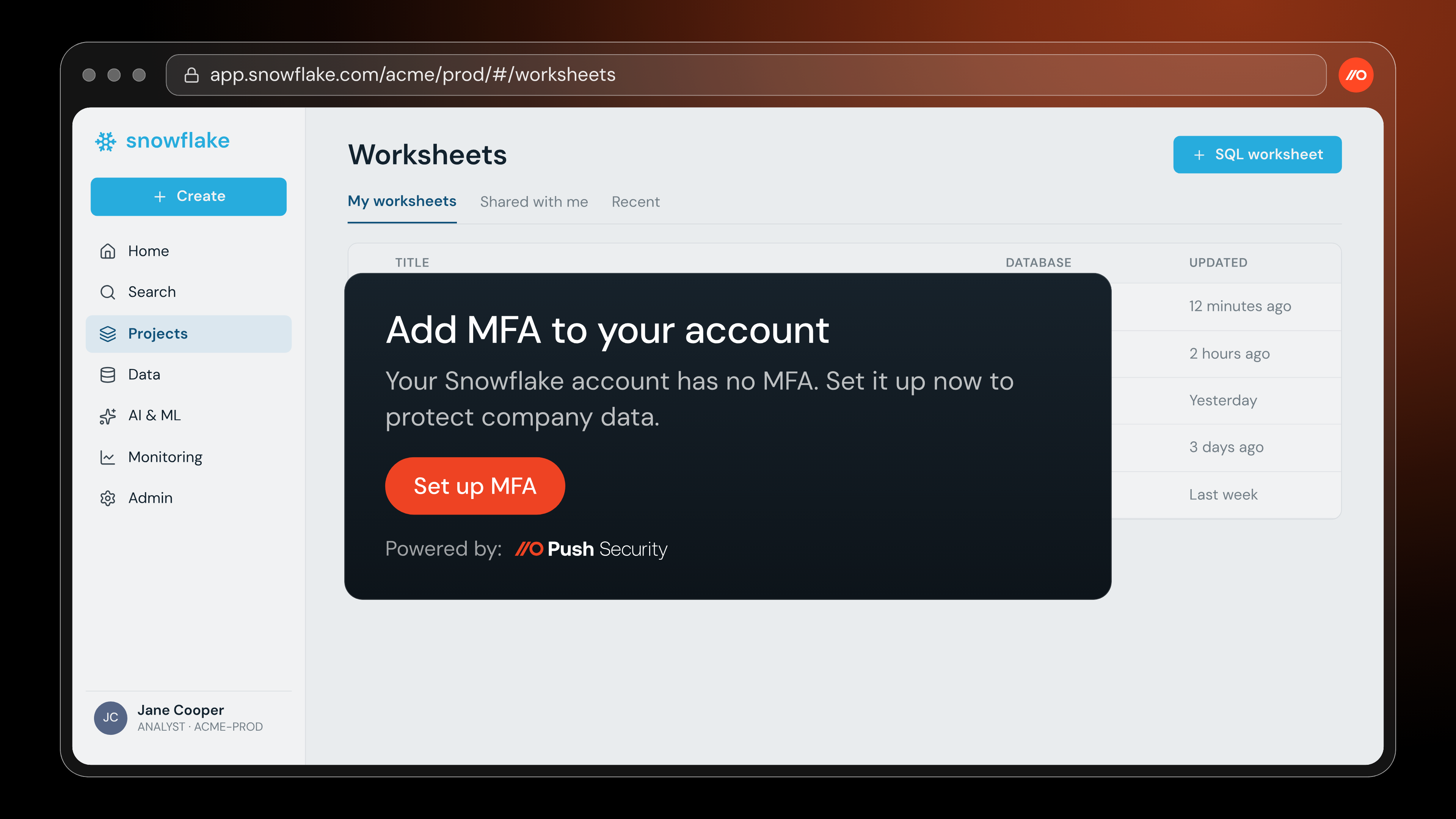
Using Push’s Password protection control, you can select apps where you want to essentially “pin” the high-value password to only that app and prevent its reuse (or phishing) on any other domain.
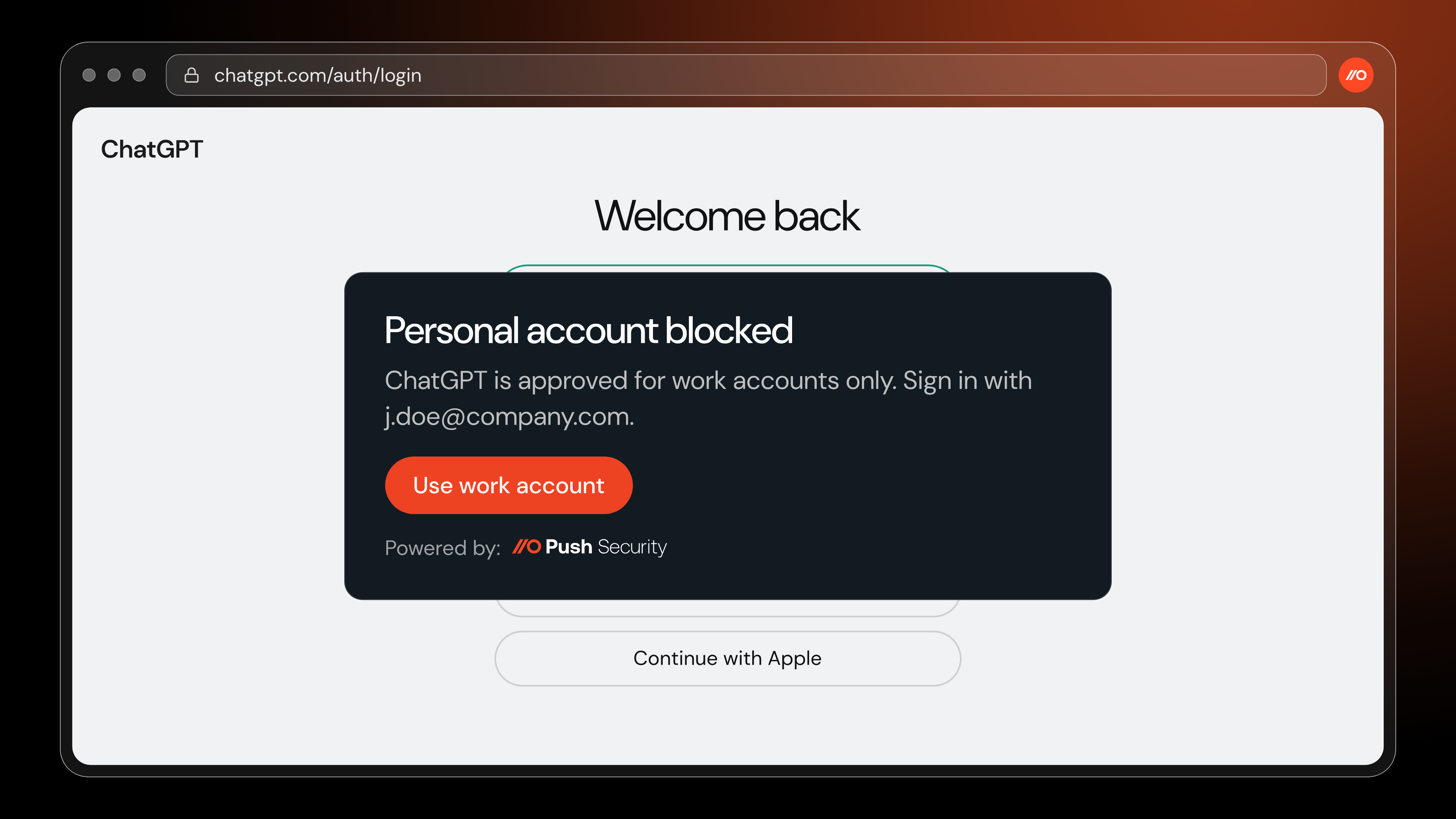
Using Push's Account condition enforcement control, you set the conditions under which employees can use any app. For example, you can block personal-account logins to ChatGPT, Claude, or Gemini, so those apps are only used with a corporate identity. In Warn or Block mode, the user sees your banner and a Terminate session button, which logs them out of that app.
Using Push’s Browser extension blocking control, you can create a blocklist or allowlist of extensions and prevent users from installing or enabling blocked extensions.
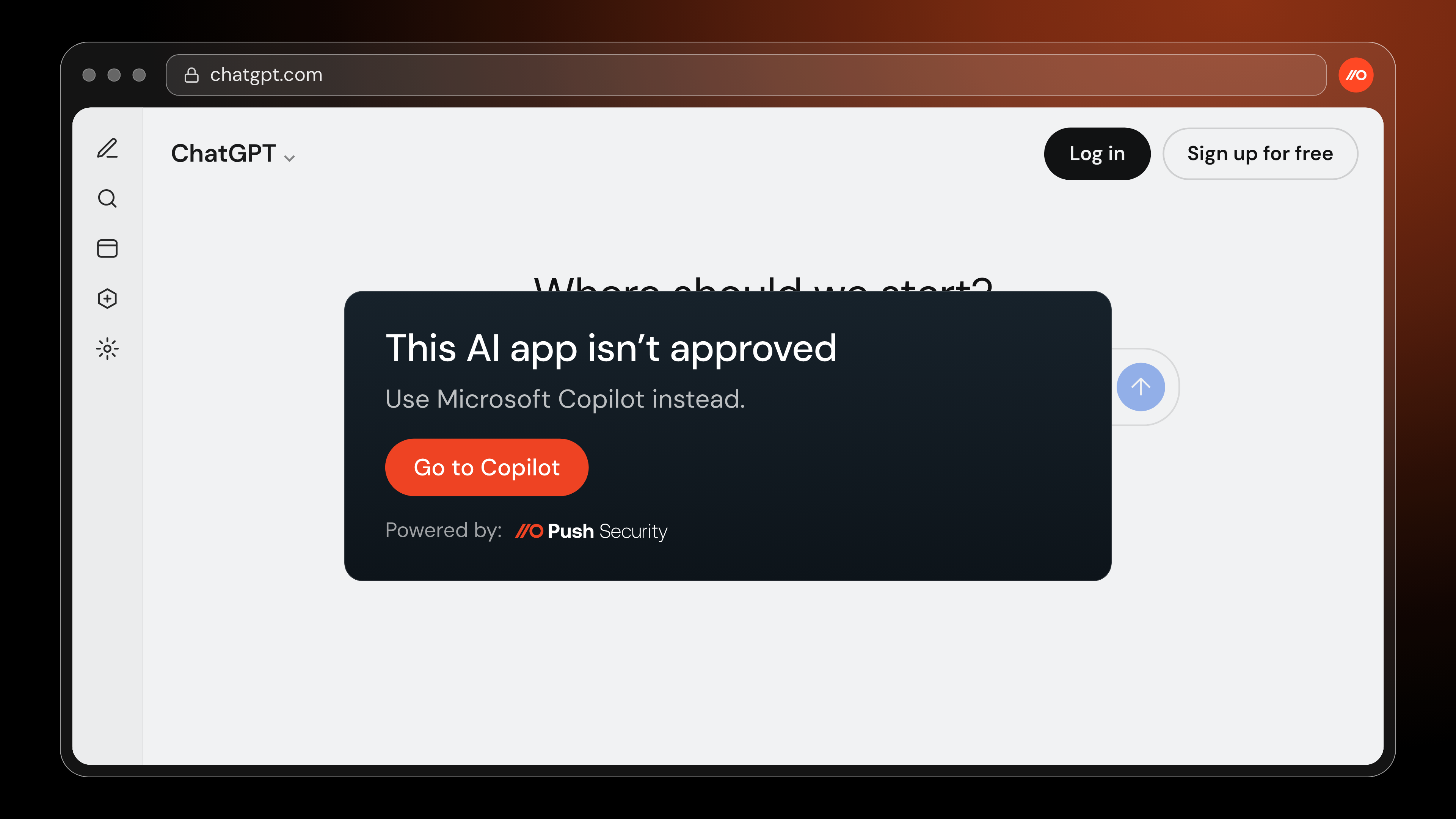
Using Push’s App banners feature, you can add custom messages to apps in use across your business, or even specific URL patterns. Banners run in four modes: Inform, Acknowledge, Reason, and Block. Push also categorizes the apps it discovers, so a single rule can block a whole category, such as unapproved file-sharing or AI apps.
For sites that aren't work apps, the Domain category blocking add-on blocks whole categories of domains, using an AI-powered categorization database. Blocking newly registered domains is a useful control against phishing infrastructure that changes faster than reputation feeds can follow.
Your security team gets:
A flexible and highly configurable set of controls to solve account vulnerabilities at scale and to enforce your security controls around browser extensions and app usage.
Your end-users see:
Contextual, actionable guidance in the midst of their actual workflow, helping them fix the issue or guiding them to safety.
Enhancing user trust with custom branding
We recently released the option to customize the look and feel of all employee-facing banners and block pages.
From the Settings page in the Push admin console, you can upload your logo, add accent colors, and choose from light or dark backgrounds.
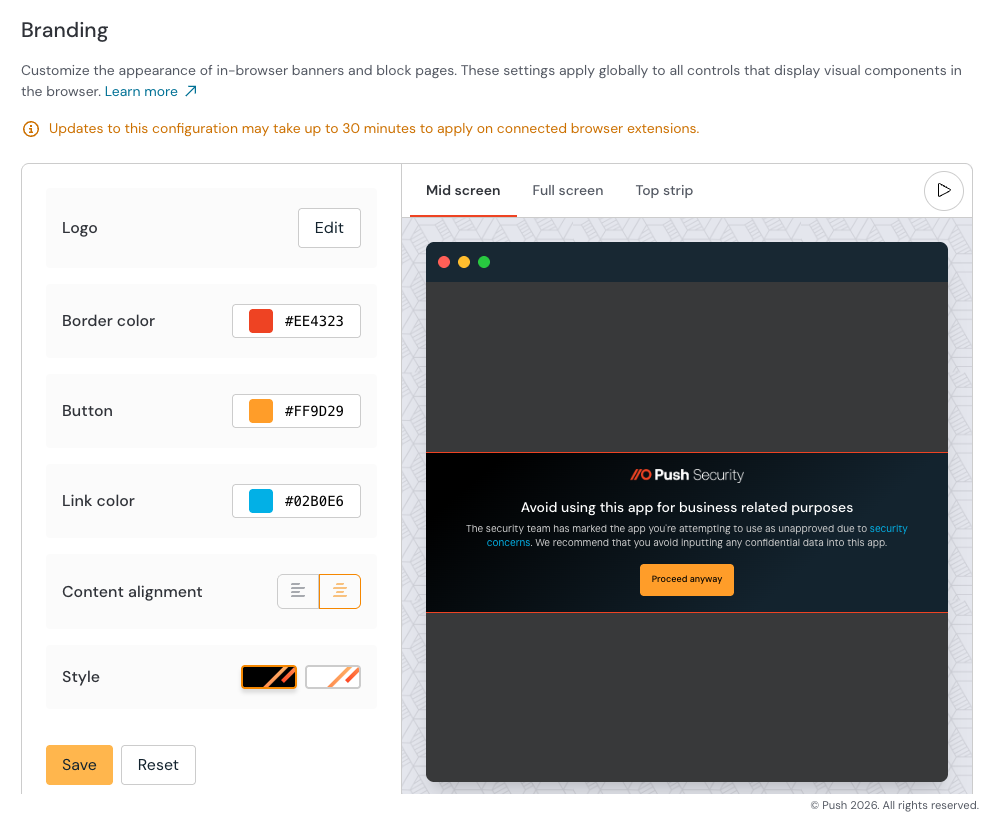
You can also add a help link to every banner and block page. Point it at your internal security policy or a help desk form, so users know where to go when a block page stops them.
Custom branding increases the trustworthiness of these in-the-moment security guardrails so that users recognize them immediately and act on their guidance.
The result: Better compliance and lower friction for you and your employees.
Learn more about Push
Want to learn more about Push? Check out our latest product overview, visit our demo library, or book some time with one of our team for a live demo.