Detect risky and malicious extensions and block them from running in employee browsers using Push.
Detect risky and malicious extensions and block them from running in employee browsers using Push.
Attackers are doubling down on malicious browser extensions as their method of choice. Recent campaigns like ShadyPanda, ZoomStealer, GhostPoster, and the breaches impacting vendors like Cyberhaven and Trust Wallet, all highlight the threat posed by malicious extensions.
Most malicious extensions didn’t start that way. Attackers often begin with a legitimate extension — either by creating something that is initially benign, purchasing an extension that already exists and has a large number of installs, or by phishing an extension developer’s account to publish a malicious version. Then, they bide their time, waiting for the right moment to flip the switch and deploy a malicious update, compromising every browser that they’re deployed to.
Imagine the scenario. There’s a small dev team responsible for a basic but widely used extension (let’s say a color picker tool) with millions of users. An attacker just needs to phish a dev (that might not even be working from a device with proper security software or controls), grab the extension code that is publicly available from the store, insert obfuscated malicious code, and upload the new version to the store. As soon as the extension updates, millions of browsers are compromised.
This is why we take our own security processes around extension management so seriously. You can find out more about our process here.
Why tackling malicious extensions is a hard problem for security teams
The Chrome extension store alone has in excess of 100k extensions with a wide range of use cases. Pretty much every major app today has an extension counterpart, and there are countless smaller extensions — from AI overlays, to screen recording, spell checking, and color matching. AI-assisted development has further increased the rate at which new extensions are created and added to the marketplace (for both legit developers and malicious ones).
For organizations just beginning to think about extension management, this isn’t an easy problem to get a handle on. If you’ve allowed your employees to freely install extensions without restriction, then there could be hundreds, if not thousands, of different extensions in use across your business.
Malicious extensions are good at hiding bad code
Right now, extension stores are fighting a losing battle against attackers.
Malicious extensions are being regularly uploaded, bypassing code analysis checks, and even achieving “Featured” or “Verified” status in the app stores. This is because attackers are using dynamically compiled, stealthily smuggled code that can’t be reliably spotted through static code checks or sandbox analysis.
Bad isn't detected until an extension is observed doing malicious things in the wild. Most of the time, this is because there’s been a breach.
When an extension is reported as bad, it enters a lengthy review process. Unless there’s pressure to act quickly (e.g. there’s a large amount of reporting), it won’t get prioritized.
Just because an extension is removed from the store doesn’t mean that it’s automatically removed from browsers where it is installed.
The bottom line: The security teams at Google and Microsoft analyse and manually approve every single extension upload and code change that enters their store, and even they aren’t detecting bad before malware executes in the victim’s browser.
Today, there’s no single magic bullet tool or control that organizations can use — unless you simply want to disable browser extensions altogether, which might not be the best option for users and their productivity.
Fortunately, Push is in a good position to help, with its ability to inventory all your browser extensions and help you find and block malicious ones.
How to securely manage browser extensions (and how Push can help)
Here’s our step-by-step guide to securely using browser extensions in your organization.
Step 0: Enable malicious browser extension detection to stop known-bad extensions from running in your environment.
Step 1: Establish an inventory of extensions currently in use across your users and their browsers.
Step 2: Risk-assess the extensions running in your environment using Push data.
Step 3: Create an allowlist or blocklist to control the extensions active in your environment.
Step 4: Monitor for risky changes.
Step 0: Enable malicious browser extension detection in the Push platform
First, we recommend you take action to ensure that extensions reported as suspicious or malicious are blocked from running in your environment.
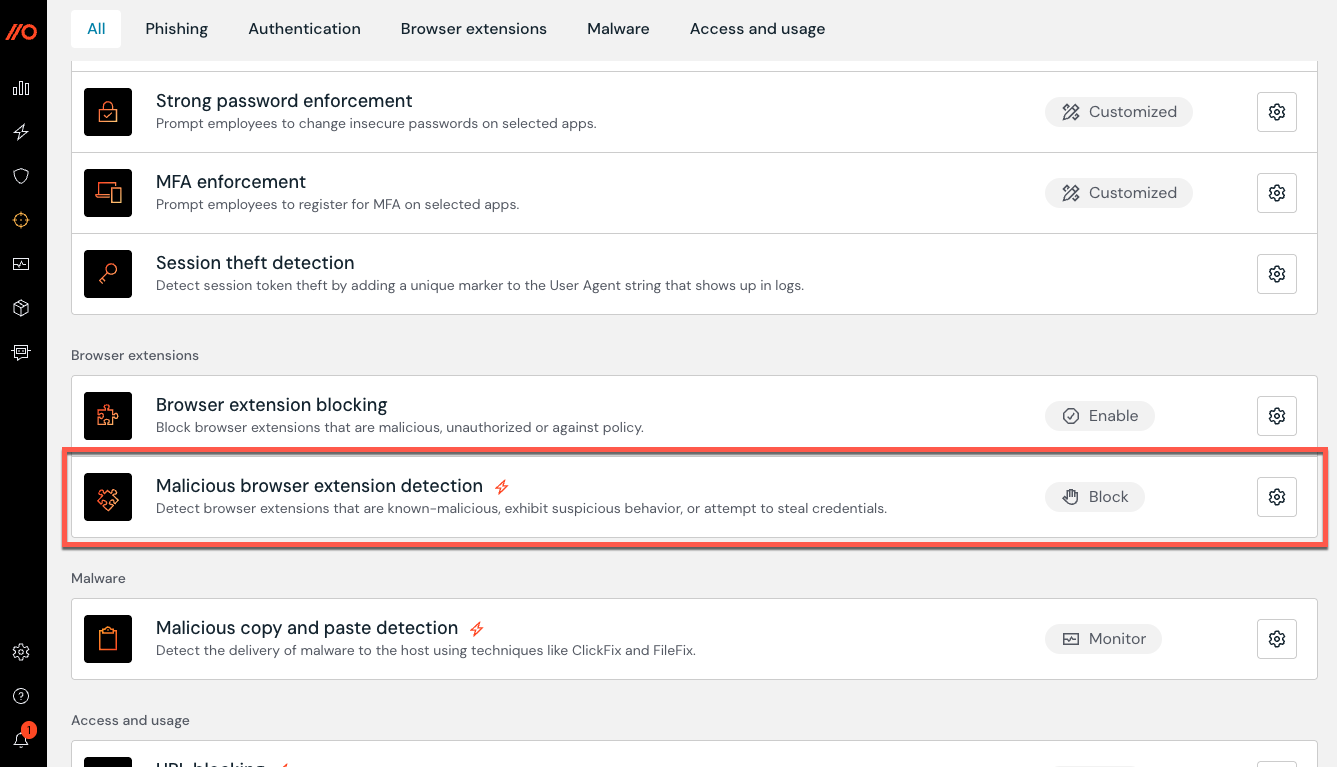
Even if you’re blocking employees from installing extensions without admin approval, an extension that was safe and approved yesterday can be malicious today. This is why it’s vital that organizations proactively block known-bad extensions — particularly when extension stores cannot be relied upon to disable extensions already installed in your employee browsers. Early intervention can mean the difference between a malicious update being deployed and browser secrets being stolen, and disabling the extension before any harm is done.
If you’re a Push customer, you can ensure that any extension that is reported as malicious is automatically blocked in your environment. This means that the extension gets disabled and cannot run in any browser with the Push extension installed.
The Push Security research team maintains a global list of known-bad extensions based on threat intelligence reporting. This list is continuously updated and ensures that as soon as an extension is reported as malicious, it is blocked.
You can enable the control via the Controls page in the Push admin console. Admins can configure rules in Off, Monitor, or Block mode. Block mode is recommended, meaning that extensions are disabled and web store access is blocked. You can read more about this in our Help Center.
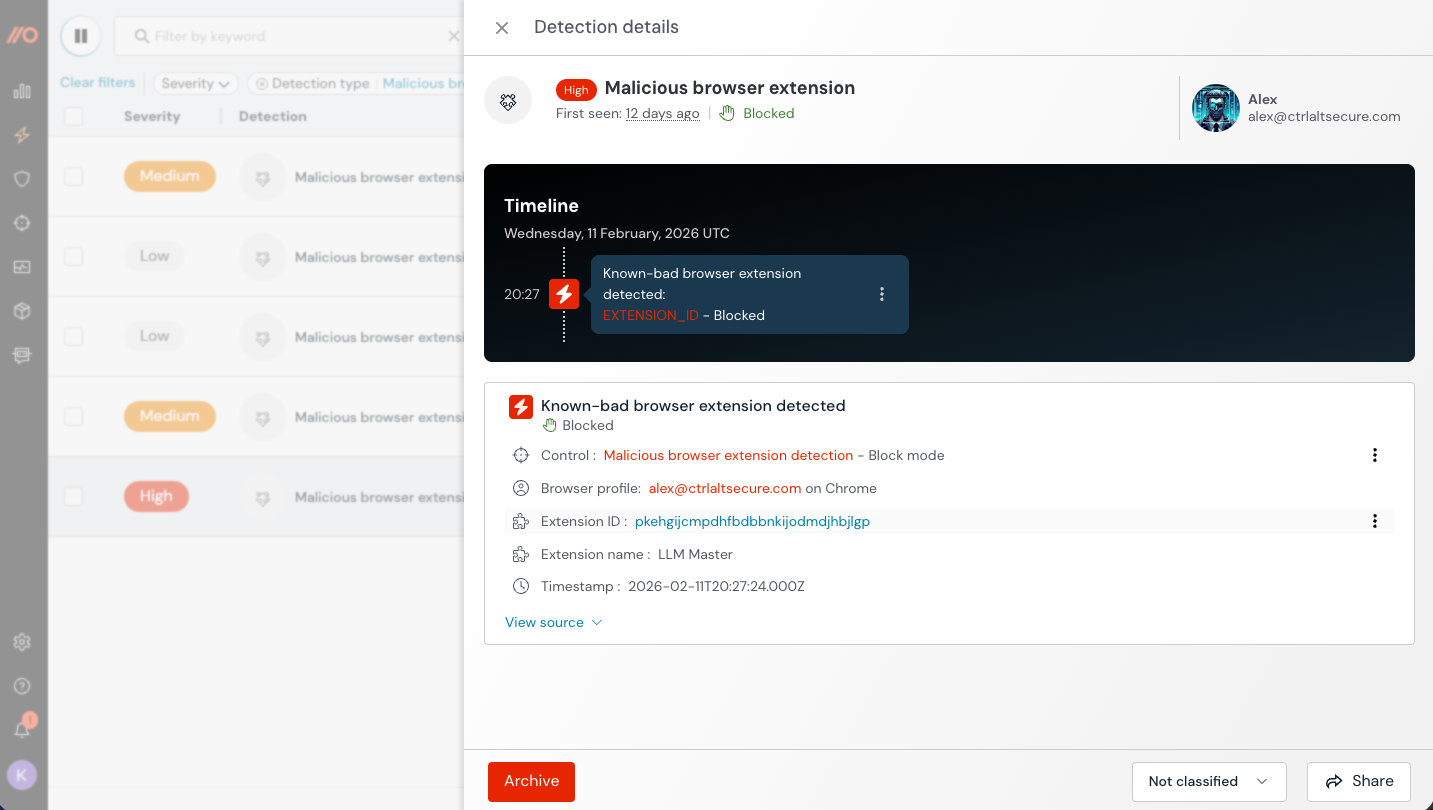
When an extension is flagged as malicious, a detection event will be generated and appear on the Detections page in the Push admin console. The severity of these detections is classified as follows:
Low for an extension that has never been enabled. The control prevented either the installation or the extension from being enabled.
Medium for an extension that was installed and enabled, but has been disabled by the control.
High if the extension was enabled and is still active (i.e. the control was in monitor mode).
Step 1: Establish an inventory of existing extensions.
Next, we recommend you take stock of what’s already running in your environment so you can begin to make risk-based decisions about what you allow, and what you don’t. This means building an inventory of every extension running in every browser.
Push provides real-time visibility of extensions installed in every browser across your workforce.
Push tracks several key data points, including:
Extension name, ID, and version number
Update & homepage URL
Extension permissions
Host permissions (where applicable)
Deployment method (e.g. managed, manual, sideloaded or development)
Which employees use the extension
Which browsers have the extension installed
Whether the extension is enabled or disabled
Useful metadata like install count, ownership history, update history, and whether the extension has been unlisted from the web store.
This information is critical for assessing risk, as well as providing an early warning of future malicious intent.
You can enable browser extension visibility in the Push platform by going to Settings > Organization > Browser extension visibility and toggling on the feature.
Step 2: Risk-assess the extensions running in your environment using Push data.
Now that you’ve built a real-time inventory, you can start to analyse the data to find risky extensions.
Every extension that is running in your environment expands your potential attack surface, representing another node that can be compromised by an attacker. So it makes sense to only allow those that are absolutely necessary in order to sensibly control the risk.
You can start to investigate and prune extensions based on the properties tracked in the Push platform. For example:
Extensions with a low install count from an unverified publisher.
Extensions that have been sideloaded (installed by software on the machine) or are development (installed from a folder off-disk when Developer mode is turned on)
Extensions that are used by a small number of employees for niche / non-critical functions.
Extensions with risky permissions.
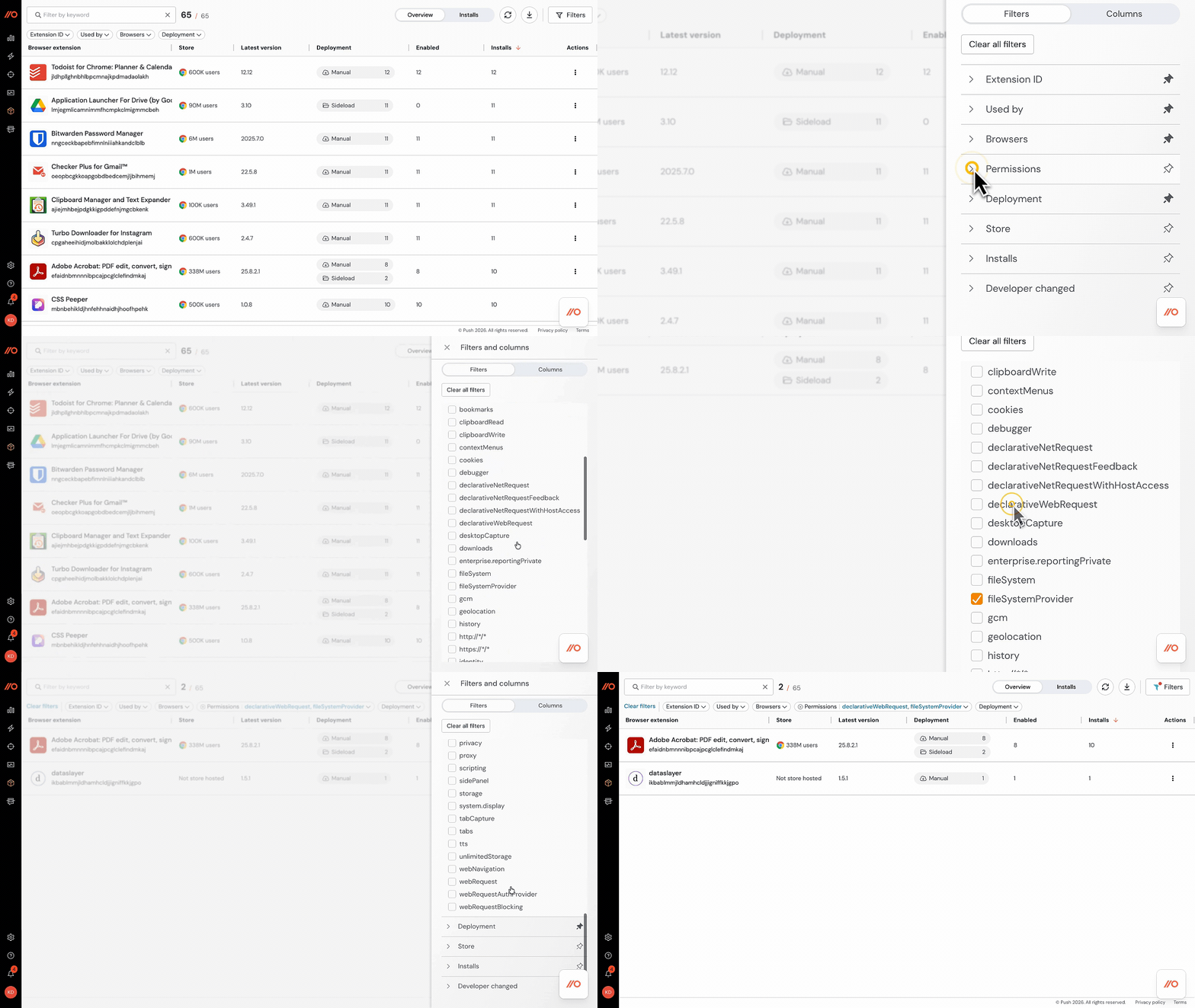
Pretty much every extension has permissions that could be considered risky and exploited by an attacker, so permissions alone are not a great benchmark for whether it should be allowed or not. But extensive permissions plus an unverified publisher or a recent change in ownership might be enough to prioritize an extension for removal.
Step 3: Create an allowlist to control the extensions active in your environment.
Using the output of your risk assessment and the data provided by the Push platform, you can control the extensions that you allow your employees to use.
To do this, you need to allowlist the extensions you’re happy for employees to use (and block everything else). That way, you remove the ability for employees to add new extensions unless approved by an admin. This means you either:
Add every extension you currently have running in your environment to an allowlist, block everything else, and then start to prune extensions from that list.
Create a shortened allowlist from the outset.
Both are valid ways of solving the problem, with the first option being the least potentially disruptive (i.e. you’re not switching off a load of extensions in one go). That said, this might not be a viable solution depending on your company size.
If you plan to restrict the extensions that your employees can install and run, you’ll need to create a workflow where employees can request new extensions and the number of extensions that would need to be reviewed. This is something that you should be able to create using your ITSM tooling in the same way that any other software is requested.
You can do this in lots of different ways depending on the OS and browsers used across your workforce. This can get messy depending on the complexity of your environment. But you can do it in a streamlined, browser-agnostic way using Push.
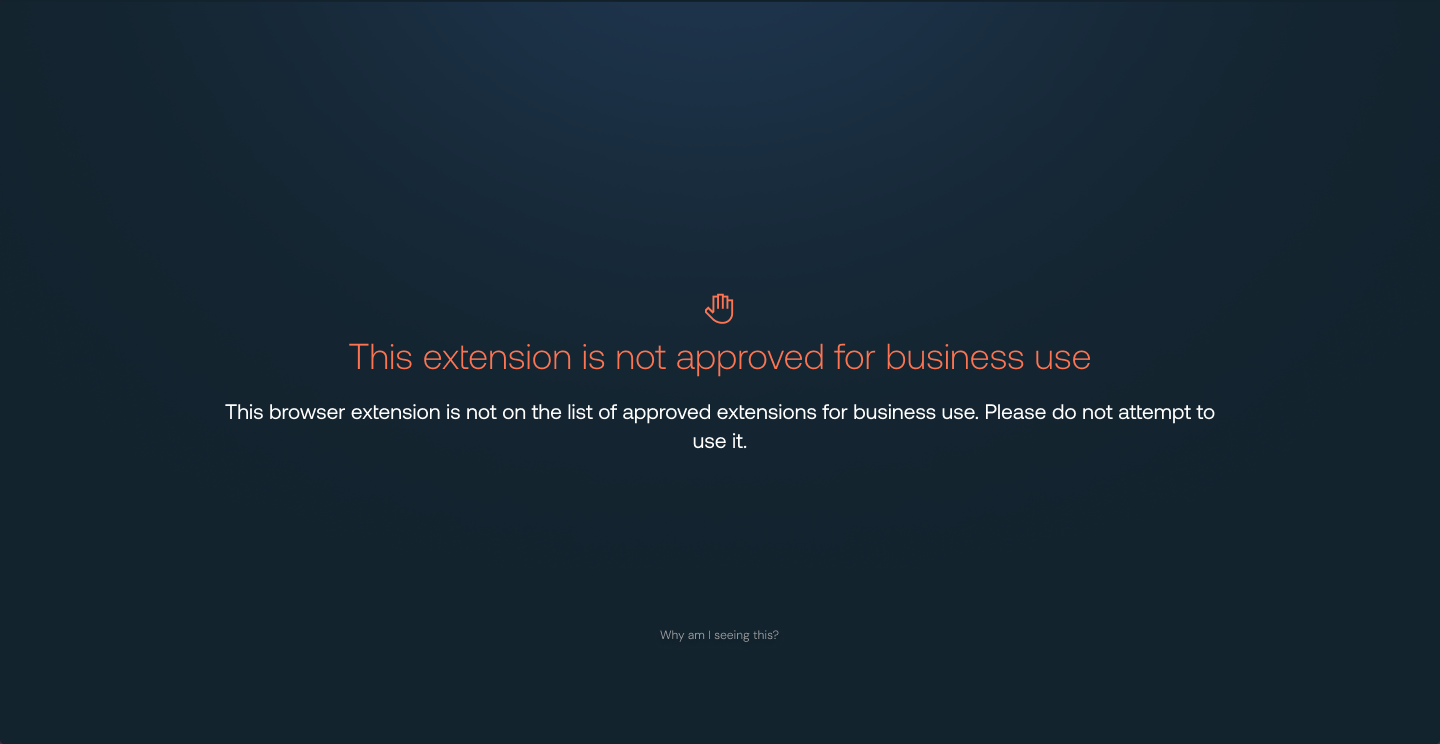
Managing which extensions you’ve opted to allow is a continuous process that will change as user behavior changes and new extensions are added. It’s important that you regularly review whether your current allowlist is fit for purpose.
Step 4: Monitor for risky changes.
Finally, once you’ve begun the process of pruning the extensions in your environment and you’ve reached a baseline you’re happy with, it’s now about reviewing and approving any new extension requests, and monitoring for risky changes.
We recommend monitoring for things like:
Regularly reviewing changes in extension ownership + recent updates
Monitoring for updates to extensions to track risky permissions being added
Monitoring for new malicious browser extension detections
It’s super simple to use Push data to create alerts and feed your detection and response workflows. See how to connect Push to your SIEM/SOAR and learn more about the Push REST API and webhooks.
At this point, you can then triage and investigate further to see whether additional action is required.
And there you have it! You’ve secured browser extension use across your organization using Push.
Don’t take our word for it …
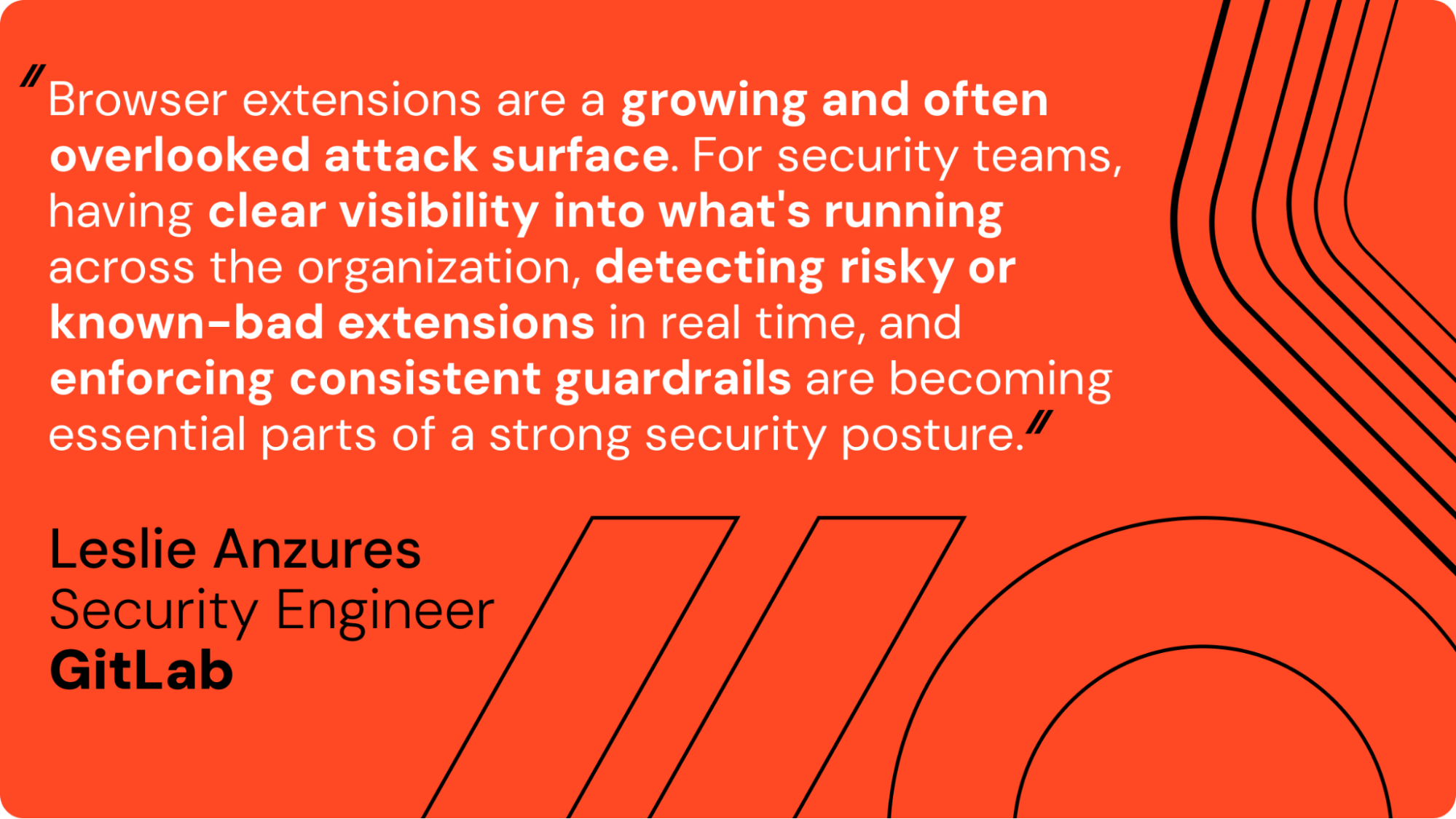
Our friends at GitLab echo our thoughts on browser extensions and the value of tools like Push that help them to solve this problem.
Additional tips
Disable browser syncing
If you’re in the early stages of your extension management process, an extra step you might want to consider is disabling browser syncing for extensions.
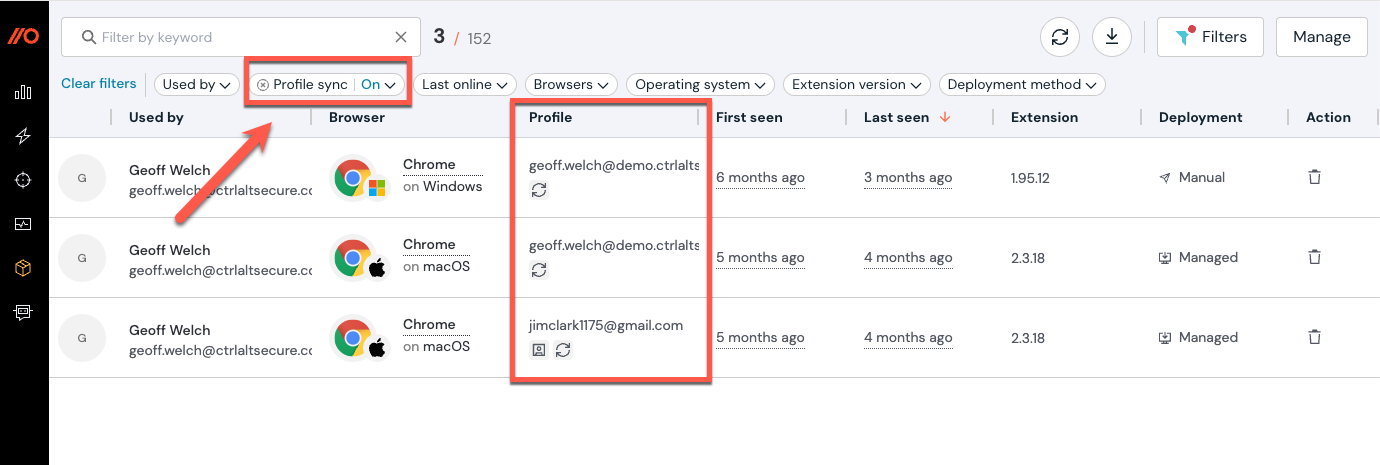
When we deploy Push, we find it’s not unusual for people to sign into their work browser with a personal email profile. There’s a significant risk here — if you end up saving and syncing credentials across devices, a compromise on a (usually less secure) personal device can lead to business accounts being compromised. Notably, this was exploited in a 2023 Okta security breach.
The same model applies to browser extensions. By default, any extension installed from the web store is synced across devices where a profile is logged in and syncing is enabled.
As an example, you can see how to disable browser extension syncing if you manage Chrome in Google Workspace.
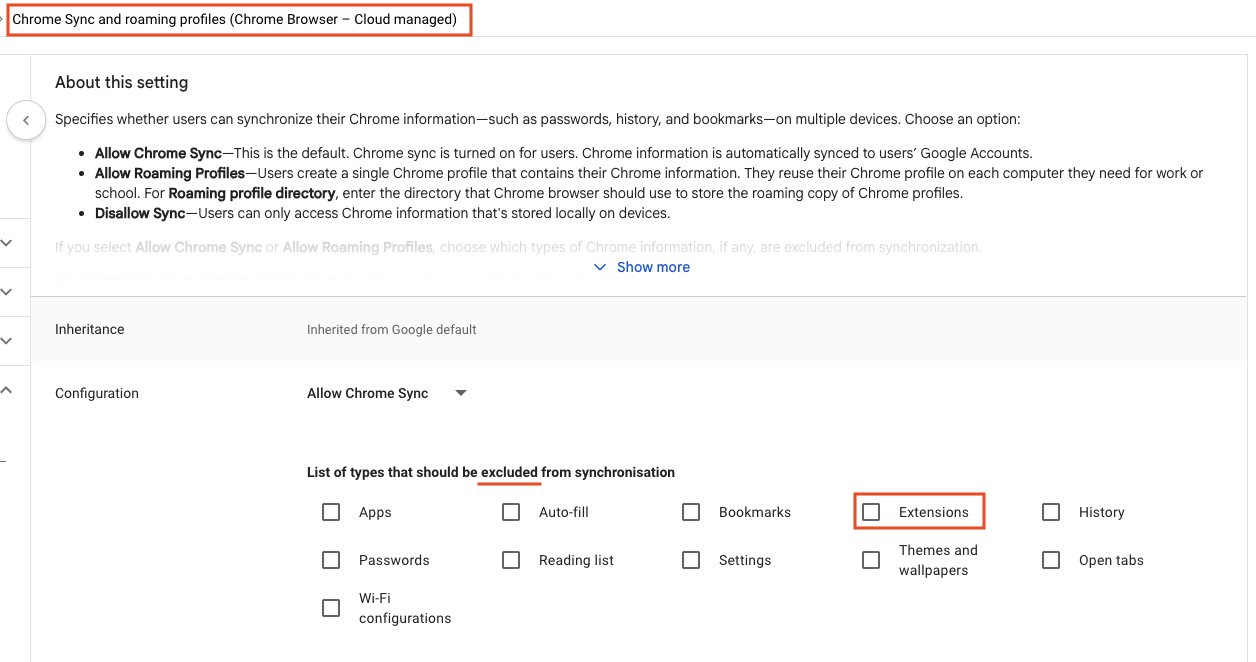
This only applies if you haven’t yet created an allowlist for extensions in your environment, in which case any extensions not on the list will be blocked.
You can also use Push to surface which users are logged into their browser using a non-work profile and whether the profile is synced across devices.
Learn more about Push
Push Security’s browser-based security platform stops browser-based attacks like AiTM phishing, credential stuffing, malicious browser extensions, ClickFix, and session hijacking — modern attack techniques that are the leading cause of breaches today.
You don’t need to wait until it all goes wrong either. You can also use Push to proactively find and fix vulnerabilities across the apps that your employees use, like ghost logins, SSO coverage gaps, MFA gaps, vulnerable passwords, and more to harden your attack surface.
Want to learn more about Push? Check out our latest product overview, visit our demo library, or book some time with one of our team for a live demo.