/
How do I write my own detections?
You can use the Push platform to write your own custom detections by creating rules in YAML format using the Custom detections option on the Controls page of the Push admin console.
Custom detections allow you to target browser-based threats or use cases specific to your organization, including both internal and external IPs and hosts. Custom detections can be created to target specific elements of the page DOM, as well as HTTP requests and responses.
How to create a custom detection
From the Controls page, select Custom detections and click Add detection.
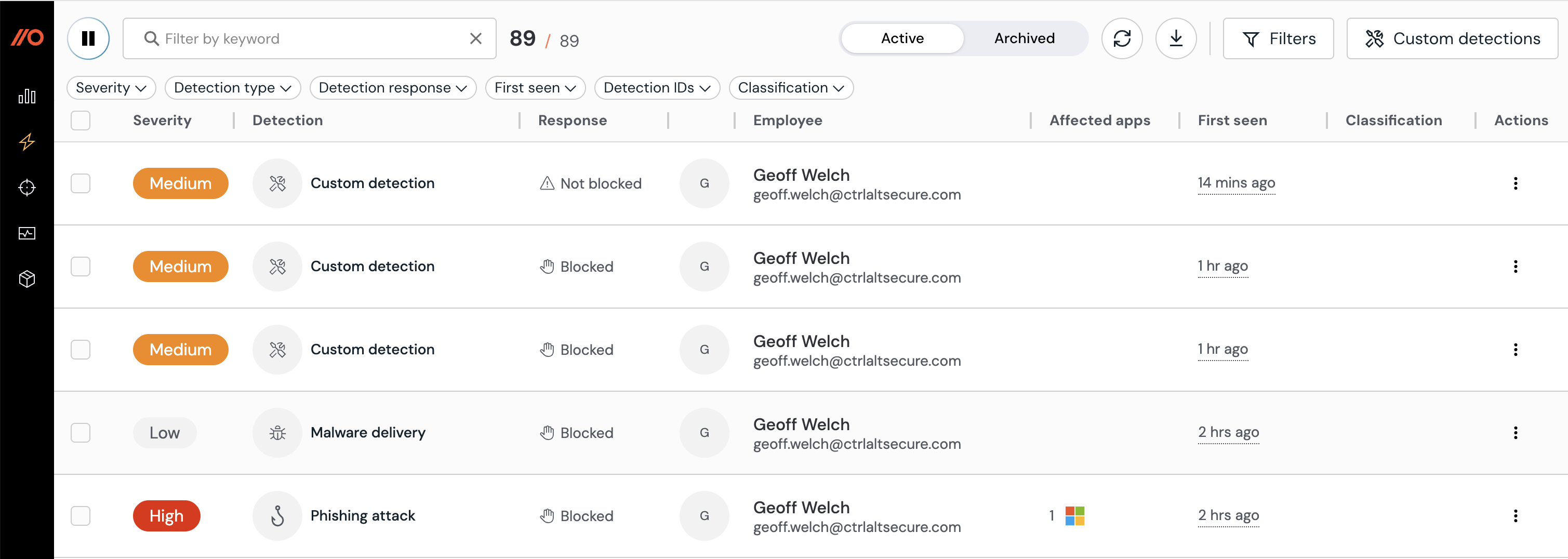
Enter a Detection event name. This is the name that will appear as detection events when opening a Custom detection on the Detections page. Push will automatically generate a Detection event type from the name you choose. For example, if you name the detection ‘CSS selector,’ the detection event type will be CUSTOM_CSS_SELECTOR. You can also use the value to filter webhook events.
Note that the detection name cannot be edited after creation. To rename a detection, delete it and recreate it with the new name.
Then enter your rule configuration in YAML format in the Rule configuration field. Refer to our developer docs for supported format and examples.
Then configure at least one control rule to determine the scope and mode of the detection.
Finally, save the configuration. Push will validate your configuration and show an error if any rules are invalid.
Note: A team can have up to 50 custom detections. Each detection supports up to 100 rules in its configuration and the configuration must not exceed 10 KB.
How to create a control rule
Control rules define which employees the detection applies to and what happens when it fires. Rules are evaluated in order, and the first matching rule applies.
For custom detections, you can configure rules for Mode (Monitor, Warn, or Block); Severity (Low, Medium, High, or Critical); and Scope (all employees, employee groups, or specific individuals).
For Warn and Block modes, you can configure your own custom text for the warn or block page.
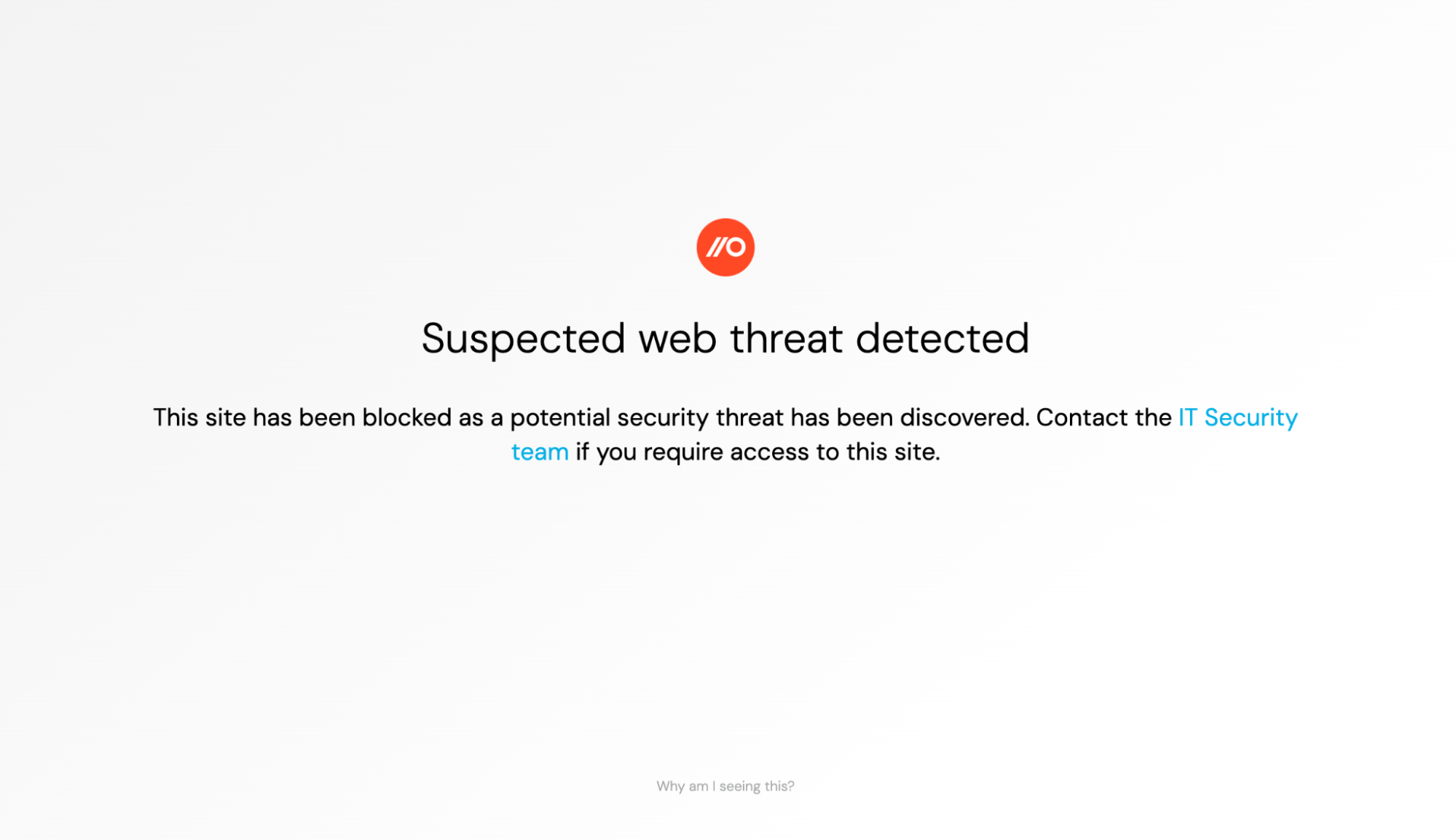
When testing a rule for the first time, you may wish to narrow the scope to a test group.
Viewing and consuming custom detections
Events for custom detections appear on the Detections page. You can filter the Detection type using the dropdown option.
To consume custom detections into your SIEM, SOAR, or other downstream system, enable Custom detection via the Push webhooks.