/
Can Push detect and disable other installed browser extensions?
Overview
Yes. When configured to do so, the Push extension can observe installed browser extensions in your environment and produce an inventory. You can also use Push to disable browser extensions that are malicious or unauthorized or that request risky permissions — or to re-enable extensions you have previously disabled.
Note that the browser type and the installation method for both the Push extension and the third-party extensions affects these capabilities. Refer to the following details:
Push can observe installed extensions for the following browsers:
Google Chrome
Microsoft Edge
Firefox
Brave
Opera
Arc
Island
Not supported: Safari
Push can enable or disable installed extensions for the following browsers and installation methods when the Push browser agent has been deployed as a managed installation:
Google Chrome
Microsoft Edge
Firefox
Brave
Opera
Arc
Island
Not supported: Safari
Push can enable or disable installed extensions for the following browsers and installation methods when the Push browser agent has been deployed as a manual installation:
Google Chrome, except where third-party extensions are part of a managed install
Microsoft Edge
Brave
Opera
Arc
Island
Not supported: Firefox, Safari
How to enable extension visibility
To enable browser extension visibility, go to Settings > Organization > Browser extension visibility in the Push admin console.
Once this feature is enabled, Push will collect the following data about installed extensions:
Extension name
Extension ID
Version number
Update URL (Note: This data type is not supported in Firefox.)
Homepage URL
Extension permissions
Host permissions (where applicable)
Deployment method (managed, manual, sideloaded or development)
Which employees use the extension
Which browsers have the extension installed
Whether the extension is enabled or disabled
Developer email
Extension history and ownership changes
Deployment methods for extensions are defined as follows:
Managed: The extension was installed by administrative policy.
Development: The extension was installed from a folder off disk using "Load unpacked" when Developer mode is turned on.
Manual: The extension was installed manually by the end-user from the web store.
Sideload: The extension was installed by other software on the machine, such as a native application that bundles an extension to work together.
Other: The extension was installed by other means.
To view the extensions observed in your environment, go to Investigate > Browser extensions in the admin console.
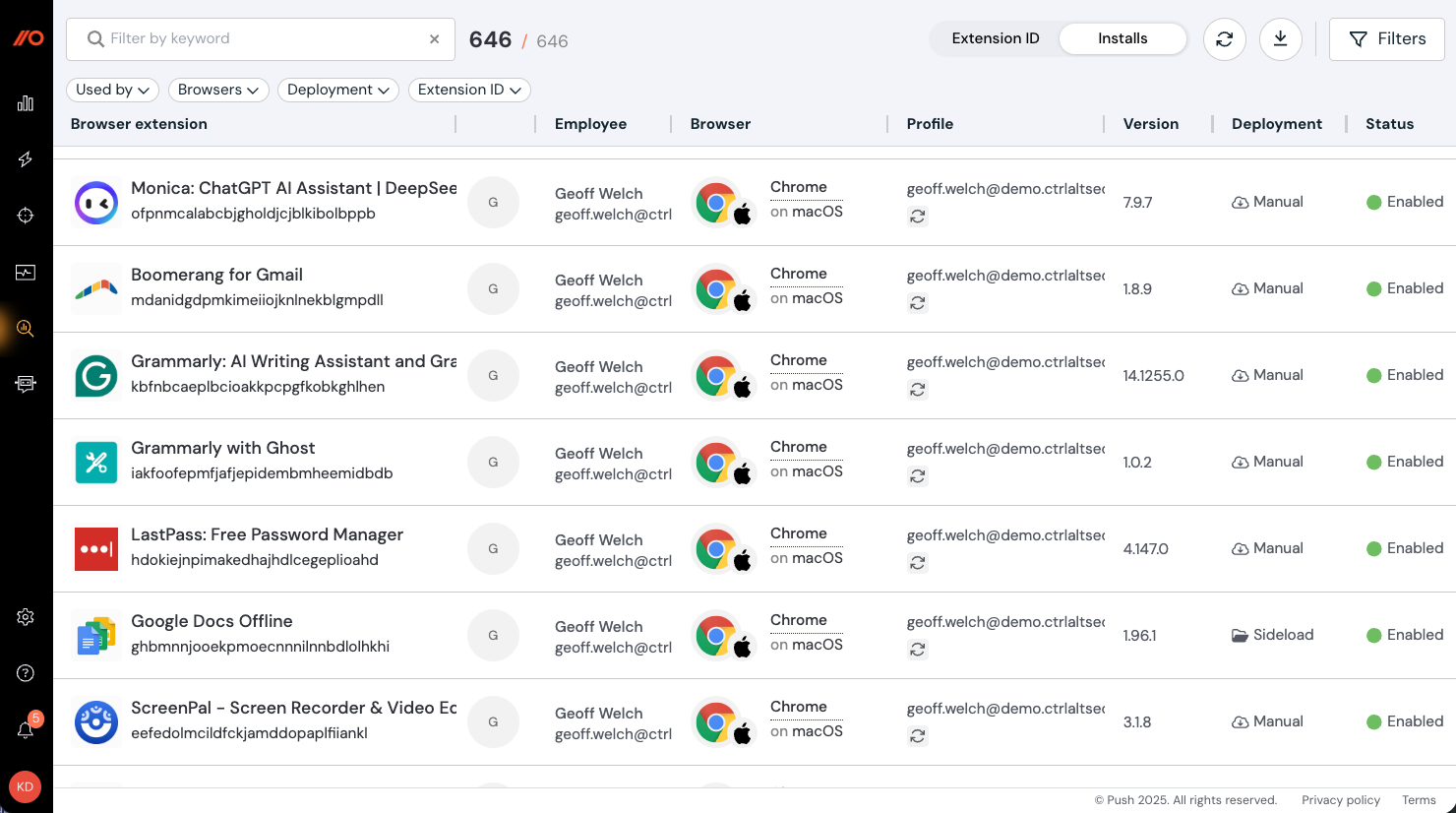
From there, you can also filter by extension ID, browser ID, browser profile and synchronization status, permissions, deployment method, and other characteristics.
Push will query the extensions installed across your environment to produce an instant inventory, and also check over time for new extensions that are installed or uninstalled, or enabled or disabled. You can choose to receive this information via webhooks, if you prefer.
How to configure extension blocking
You can configure control rules to disable extensions that are malicious or unauthorized or those that require risky permissions or are loaded using a particular method.
Note that blocking an extension disables it but does not uninstall it. The extension will remain installed but show a Disabled state in the admin console.
You can also enable an extension using the control’s Enable mode. This mode enables an extension but does not install it. This mode can be useful in scenarios where you blocked a problematic extension, remediated the situation, and now want to re-enable it across impacted browsers.
Note that users can still manually remove an extension that has been enabled using this mode.
From the admin console, go to Controls > Browser extension blocking and click Add rule on the slideout.
Then set the Mode (Off, Block, or Enable), the Scope (all employees, employee groups, or specific individuals), and the browser profile Status (all browser profiles, profiles logged in with a company domain, or profiles logged in with non-company domains).
Select all extensions, specific extensions or extension attributes (such as permissions or deployment type) you wish to block.
Finally, add the text you wish to display on the block page that end-users will see if they attempt to enable a blocked extension, or install it via the Chrome or Microsoft extension stores.
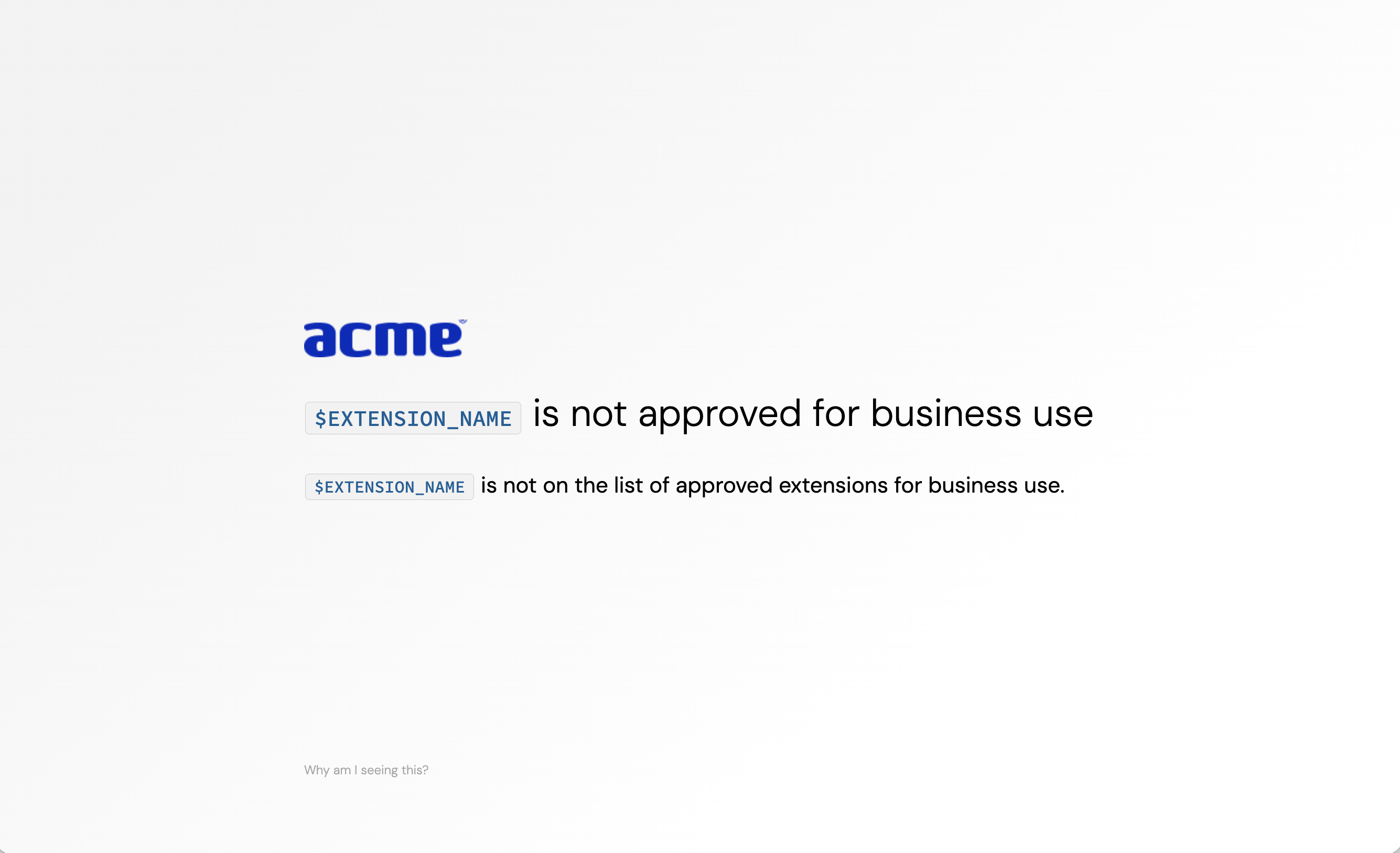
Markdown for styling custom message
The custom message field supports link and email syntax using markdown, but no other formatting.
Example markdown:
[Push Security](https://pushsecurity.com)
[Steph](mailto:steph@ctrlaltsecure.com)
You can also use the Push-supplied variable $EXTENSION_NAME in the custom message fields (both title and subtext). $EXTENSION_NAME will be replaced with the name of the extension.
How to create an allowlist
You can combine enforcement modes or use the Exclude logic in a rule to create an allowlist for extensions that allows extensions you choose and blocks anything not on that list. Here are two ways of achieving that:
Method A: Combining rules
Configure one rule set to Off mode for the allowed extensions, covering All employees. Then create a second rule set to Block mode for All employees for All extensions. Be sure the Off mode rule (e.g. the allowlist in this scenario) is the first rule in the order, so that it takes precedence. New rules will be added below the last rule in the list.
Method B: Using Exclude
Create one rule set to Block mode, with a Scope of All employees (or your chosen employee scope). Choose which browser profiles the rule should apply to, and then select which extensions should be allowed. Set the extension list to Exclude. This will block any extension not on the Exclude list for all employees.
End-user experience
The end-user experience varies slightly depending on the scenario and the browser.
When an extension with a blocking rule has already been installed, Push will disable it. If an employee tries to re-enable it, they will see your custom block screen in a new tab.
When an extension with a blocking rule has not yet been installed, Push will display your custom block screen whenever an employee navigates to the blocked extension in the Chrome or Microsoft extension web stores. The behavior for the Firefox extension web store is slightly different: If an employee navigates to a blocked extension in the Firefox web store, they will see the block screen only after attempting to install or re-enable the blocked extension.