Push Help Center
Ready to help
Configure ChatOps
Overview
Use Push’s Slack or Microsoft Teams integrations to receive real-time notifications when Push finds new detections, security findings or other changes in your environment, such as new apps being used by employees.
Install Push’s chatbot on your Slack or Microsoft Teams workspace and then choose which topics you want to receive messages about.
What permissions are required?
Slack scopes
Scope | Purpose |
|---|---|
chat:write | Post messages in approved channels and conversations. |
im:write | Start direct messages with people |
users:read | View people in a workspace. |
users:read.email | View email addresses of people in a workspace. |
im:history | View messages and other content in direct messages that your slack app has been added to. |
channels:read | View basic information about public channels in a workspace. |
groups:read | View basic information about private channels that your slack app has been added to. |
channels:join | Join public channels in a workspace. |
mpim:read | View basic information about group direct messages that your Slack app has been added to. |
im:read | View basic information about direct messages that your Slack app has been added to. |
app_mentions:read | View messages that directly mention @your_slack_app in conversations that the app is in. |
Microsoft Teams scopes
Scope | Purpose |
|---|---|
Channel.ReadBasic.All | Read channel names and channel descriptions, on behalf of the signed-in user. |
MailboxSettings.Read | Allows the app to read the user’s mailbox settings. Does not include permission to send mail. |
Team.ReadBasic.All | Read the names and descriptions of teams, on behalf of the signed-in user. |
TeamsAppInstallation.ReadWriteSelfForTeam.All | Allows a Teams app to read, install, upgrade, and uninstall itself in any team, without a signed-in user. |
TeamsAppInstallation.ReadWriteSelfForUser.All | Allows a Teams app to read, install, upgrade, and uninstall itself to any user, without a signed-in user. |
User.Read.All | Allows the app to read the full set of profile properties, reports, and managers of other users in your organization, on behalf of the signed-in user. |
User.Read | Allows users to sign in to the app, and allows the app to read the profile of signed-in users. It also allows the app to read basic company information of signed-in users. |
Install the chatbot
To get started, install the Push chatbot. Push supports integration with Slack and Microsoft Teams.
To install the Push chatbot, log into the Push admin console and your messaging platform.
Prerequisites: You’ll need to be an administrator of your chat platform, or be able to share the integration link with your admin to complete the process.
1. Select ChatOps in the left sidebar.
2. Click Start setup and then choose which chat platform you want to integrate with: Slack or Teams.
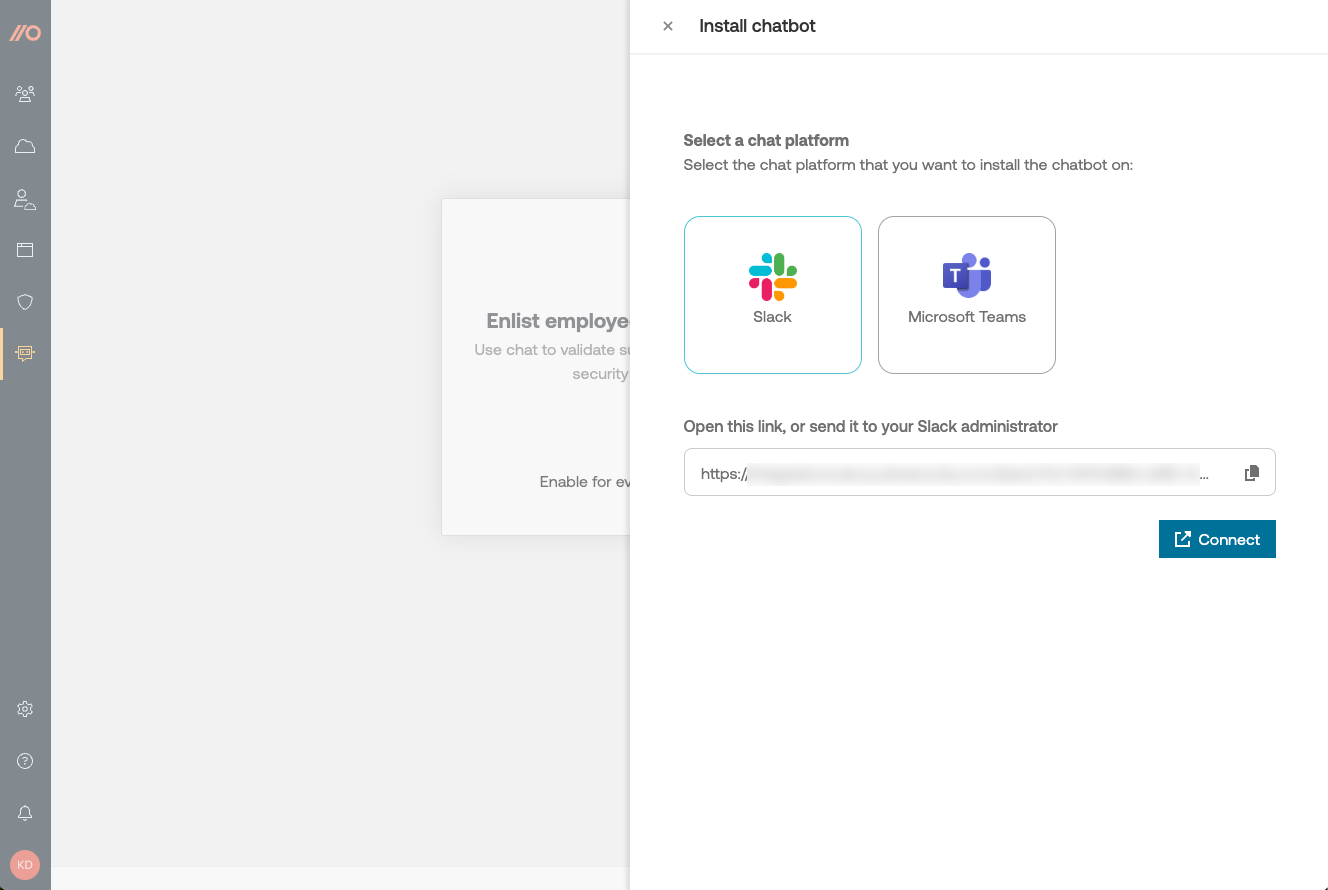
3. Click Connect using the automatically generated integration link, or share the link with your messaging platform administrator to complete the integration.
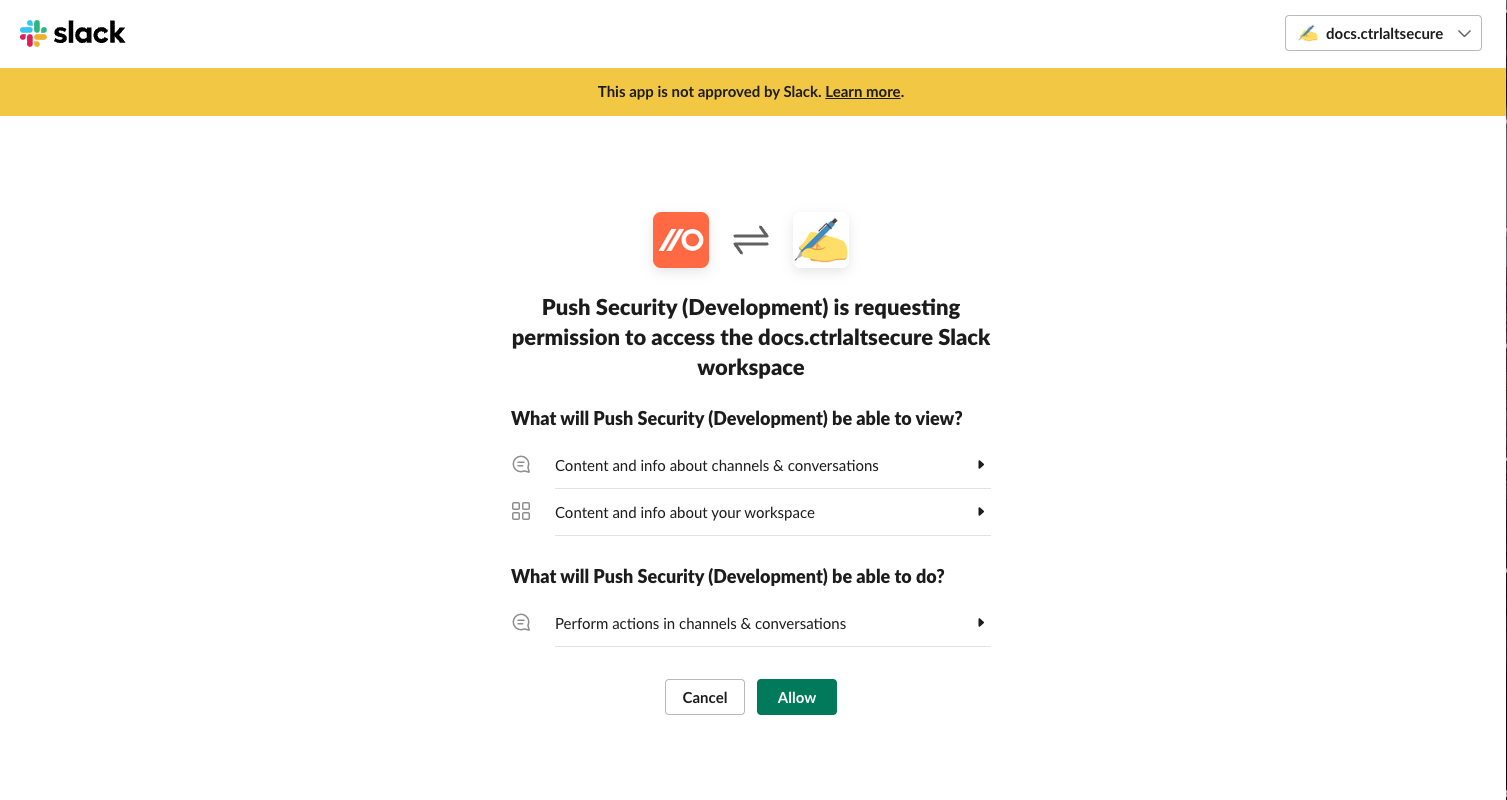
4. Consent to the integration to finish adding the chatbot to your platform.
Send a test message
To confirm that the chatbot is installed correctly, you can send a private test message to yourself.
Click Send test message on the ChatOps page of the admin console.

Success!

Select ChatOps topics
Select which topics you want to receive messages about. You'll also need to specify a channel you want to send messages to, e.g. #push-security-alerts.
You can enable individual topics or subtopics by using the Activate toggle.
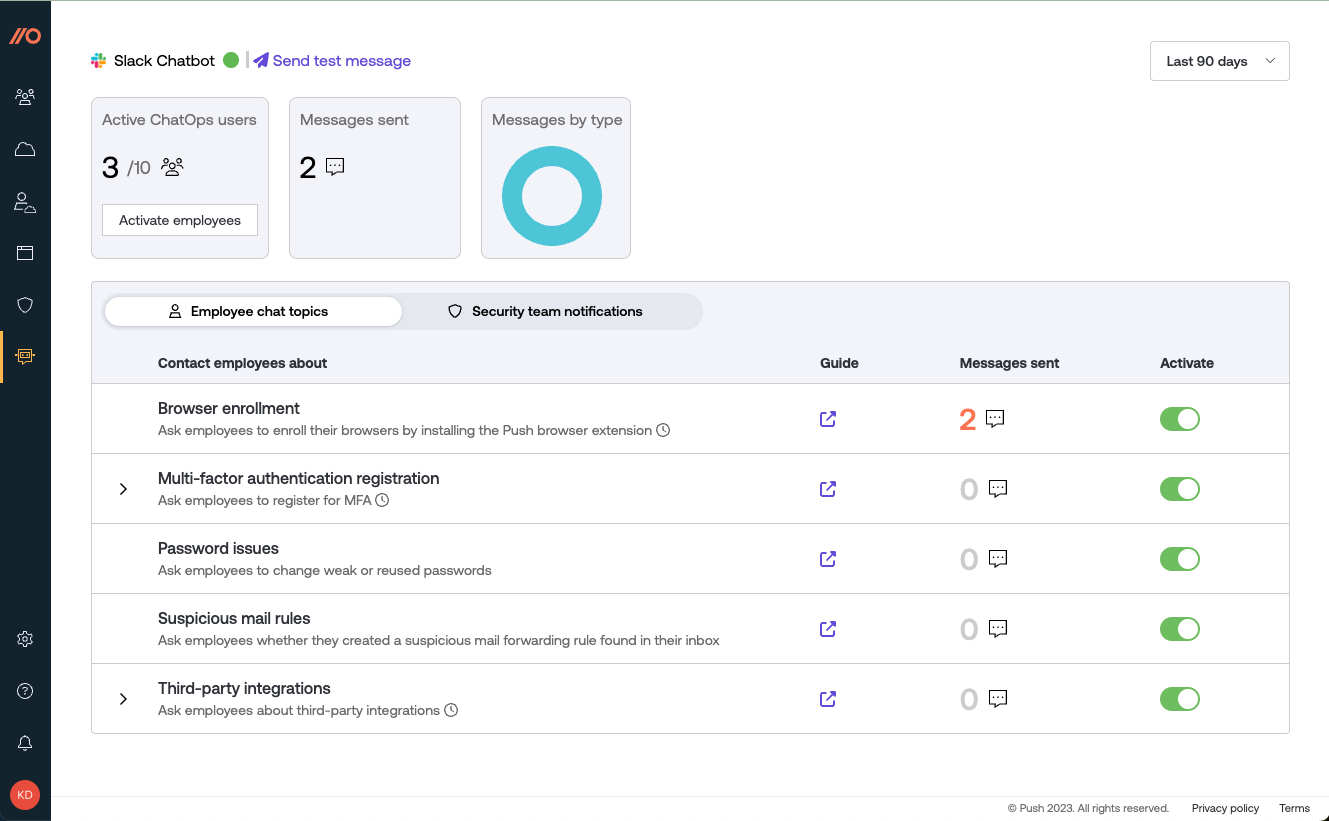
You can enable individual topics or subtopics by using the Activate toggle.
Topic descriptions
When you install the Push chatbot for Slack, by default it has access only to public channels. You can add the Push chatbot to a private Slack channel by adding Push in the integrations settings for that channel. See this Push help article for more information.
With Microsoft Teams, you can use the Push chatbot to message a private team, but the specific team channel must be unrestricted (public).
Here is a description of the topics you can receive messages about:
Topic: App discovery
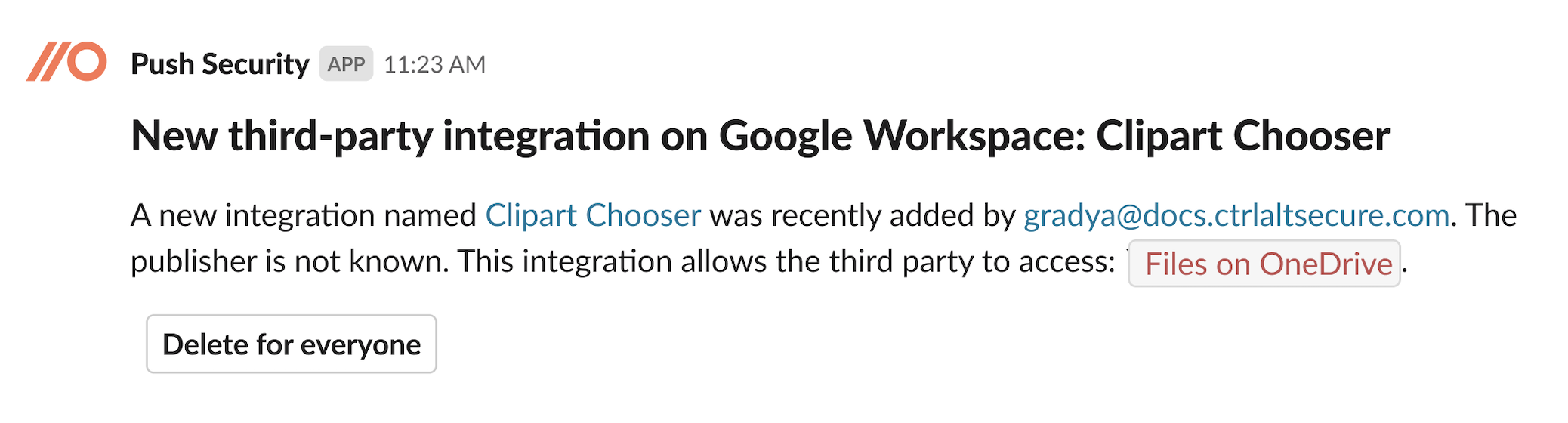
When configured, Push will notify your channel about newly discovered third-party integrations or apps added by your users. You can choose to be notified about newly observed third-party integrations and / or apps by enabling the ChatOps subtopics for each.
If you identify an integration that is unused, unwanted or otherwise problematic, you can delete it directly from the chat message. When you delete an integration from the chat message, it will be deleted immediately for all users, including users who are not licensed in Push. For more information about deleting integrations, see Delete third-party integrations.
What kind of messages are sent: Brief descriptions of recently added integrations or new SaaS apps.
Who will be messaged: Your designated Slack or Teams channel.
When will they be messaged: For third-party integrations, about once per hour if Push has observed the addition of new integrations. Newly discovered SaaS apps will generate a notification as soon as Push finds one.
Topic: Security findings
When configured, Push will notify your security team about new security findings, new security findings, such as when Push finds employees are using stolen, leaked, weak or reused passwords or shared accounts, or when their accounts lack MFA protection. When the issue is fixed, Push will also let you know.
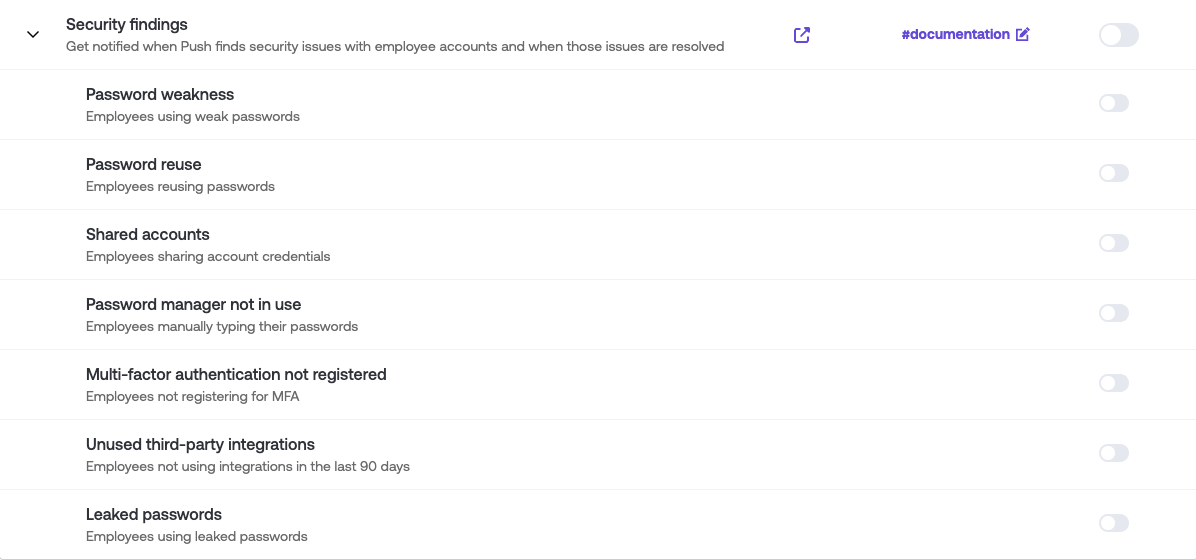
What kind of messages are sent: Brief descriptions of new security findings, such as stolen credentials, leaked passwords, weak passwords, reused passwords, shared accounts, and more. You can choose to be notified about all new security finding types, or just the ones you care about. Disable any subtopics you don't need on the ChatOps page by going to the subtopic list under Security findings.

Who will be messaged: Your designated Slack or Teams channel.
When will they be messaged: Immediately after Push observes a new finding or a resolution to an existing finding. Note that Push must observe the resolution (such as an employee logging in with their newly changed password) in order to report it.
Topic: Attack detections
When configured, Push will notify your security team about detected attacks, such as phishing, stolen credentials, and blocked URLs being visited.
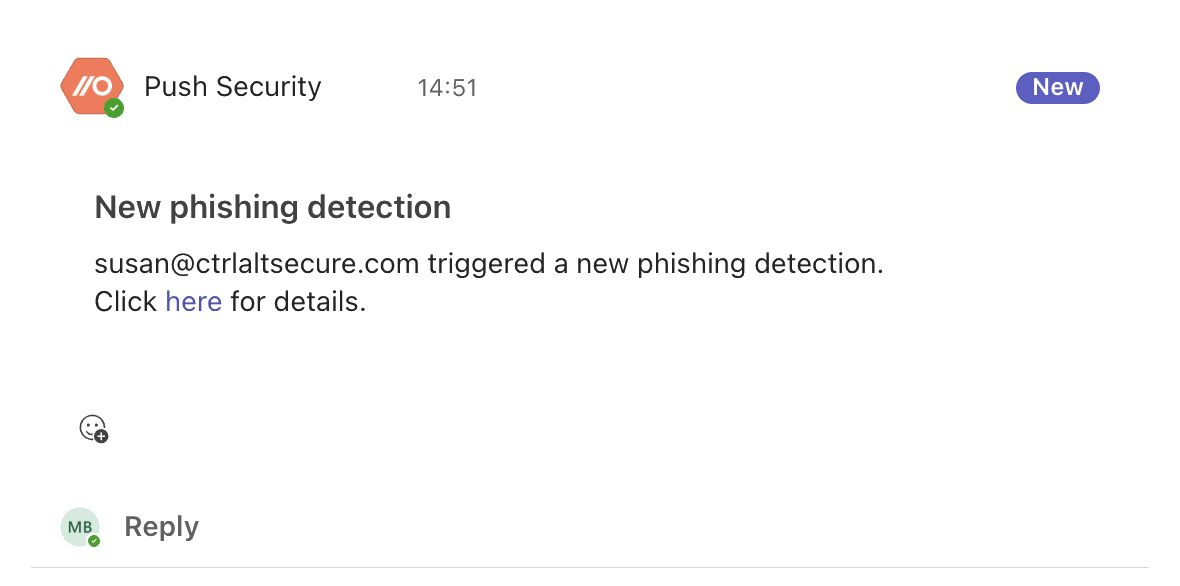
What kind of messages are sent: Brief descriptions of detection events, with a link to the detection details slideout in the Push admin console.
Who will be messaged: Your designated Slack or Teams channel.
When will they be messaged: Immediately after Push observes a new detection.
Chatbot status
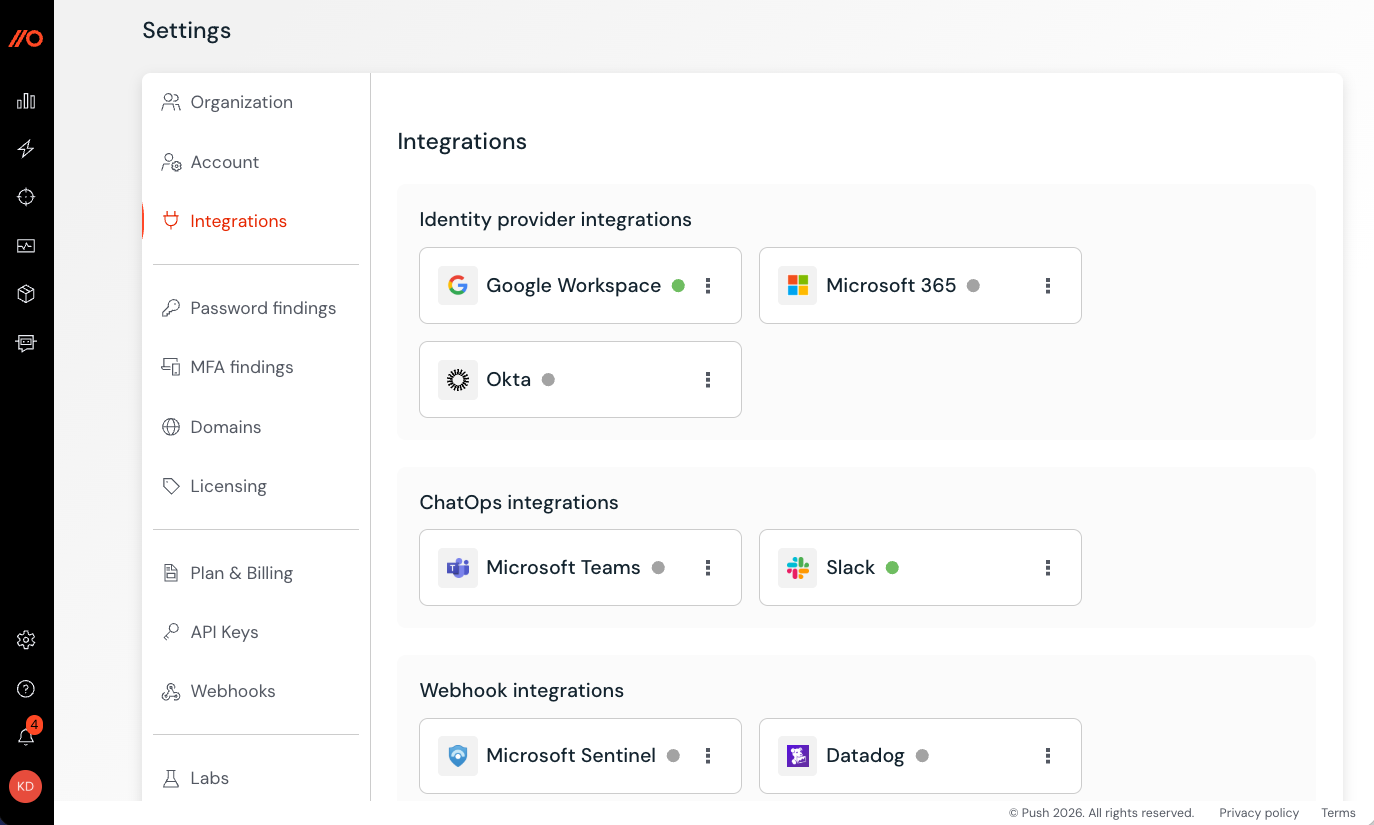
On the ChatOps page, you can check the status of your integration to confirm everything is working as expected. A green dot indicates everything is fine. A red dot indicates that something is wrong, and you may need to update your integration. You can update your integration by going to Settings > Integrations in the admin console.
Deactivating ChatOps
You can deactivate messages by toggling off the topic on the ChatOps page.
To remove the chatbot from your messaging platform, uninstall the Push chat app.
Go to Settings > Integrations > ChatOps integrations and use the trash icon to delete your Slack or Teams integration.